Products & stock
Branch transfers
Send stock from one branch to another, receive it at the other end, and print the challan.
Who it is for:Stock keeperManagerOwner
On this page
When one branch has too much of something and another has too little, transfer it. Stock leaves the sending branch at once and arrives in the receiving branch when they confirm they got it.
Send stock
- Make sure the top bar shows the sending branch.
- Go to Products & stock › Branch transfers and click Send stock.
- Choose To branch.
- Add the products and quantities. For products with expiry dates, pick the lot.
- Add a note if you like and click Send transfer.
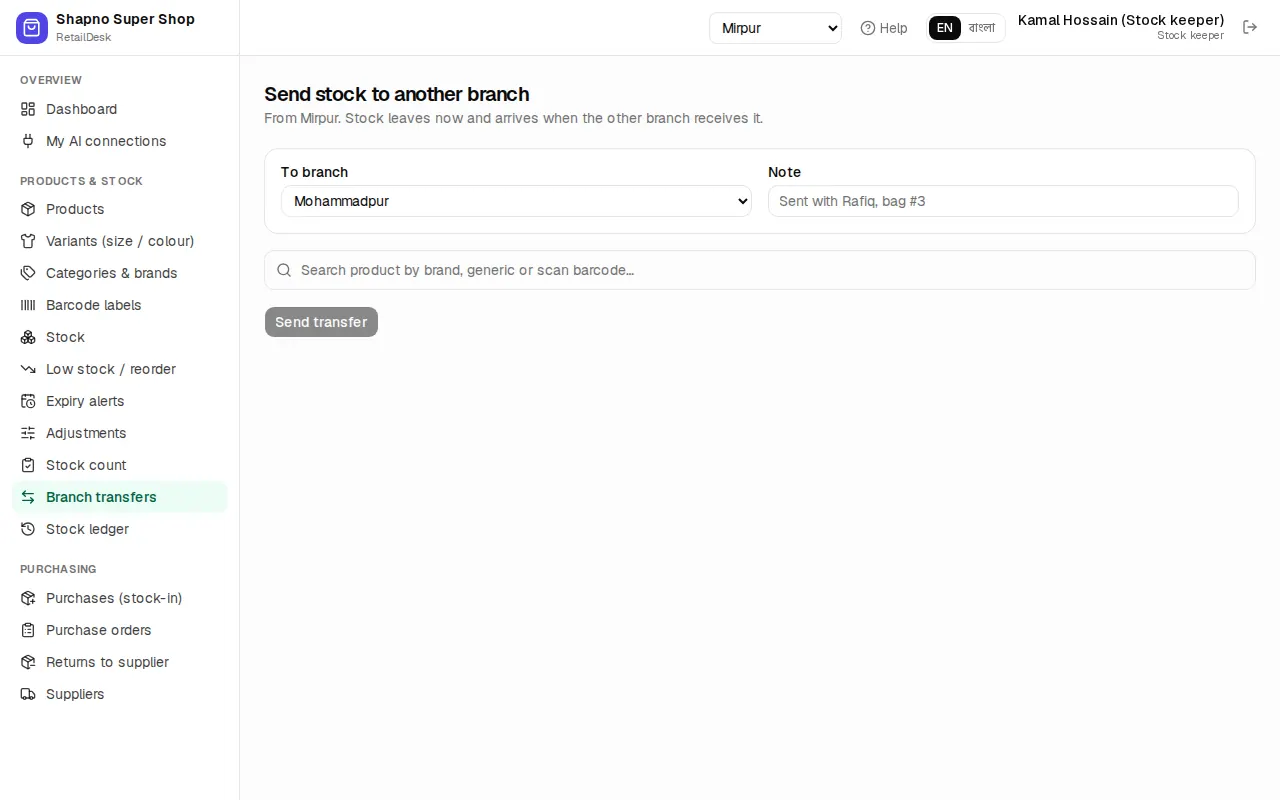
The transfer gets a number (for example TRF-000012) and the status In transit. Print the challan to go with the goods.
Receive stock
- Switch the top bar to the receiving branch.
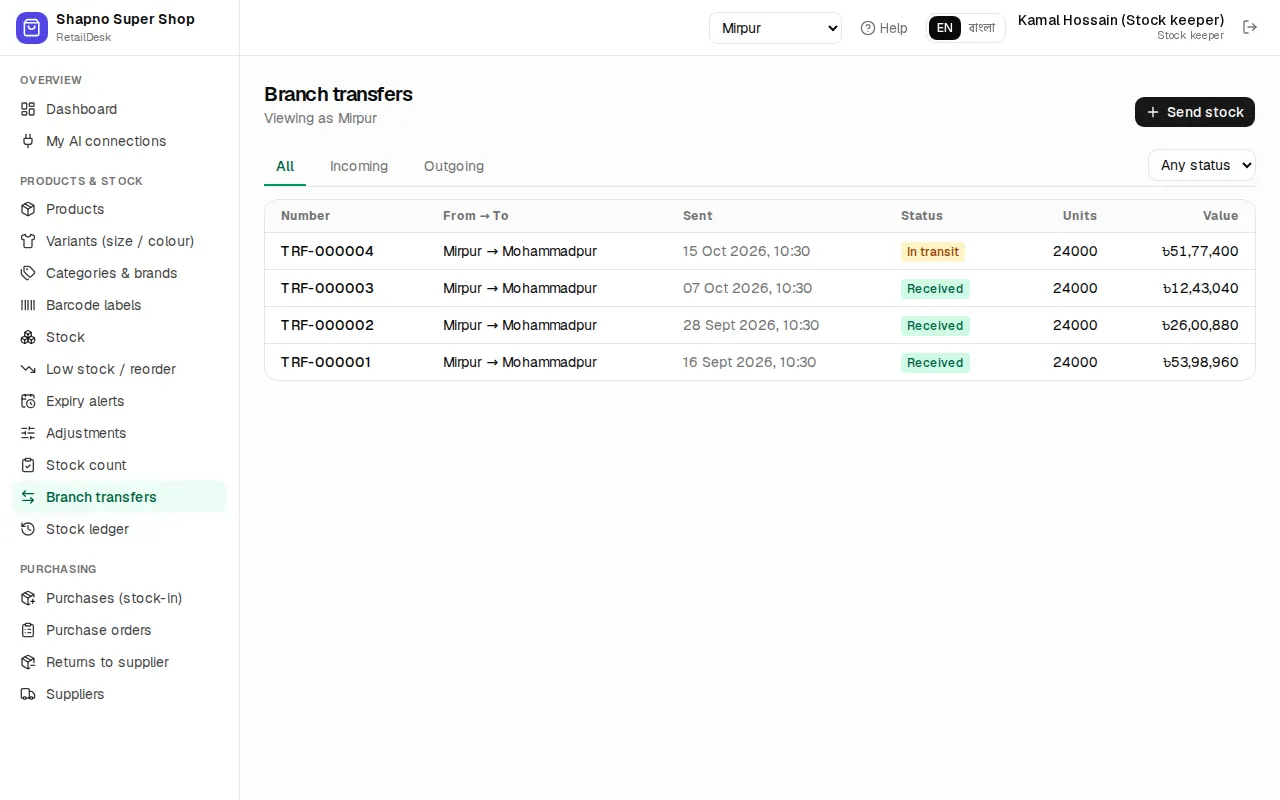
- Open Branch transfers and click the transfer that is In transit.
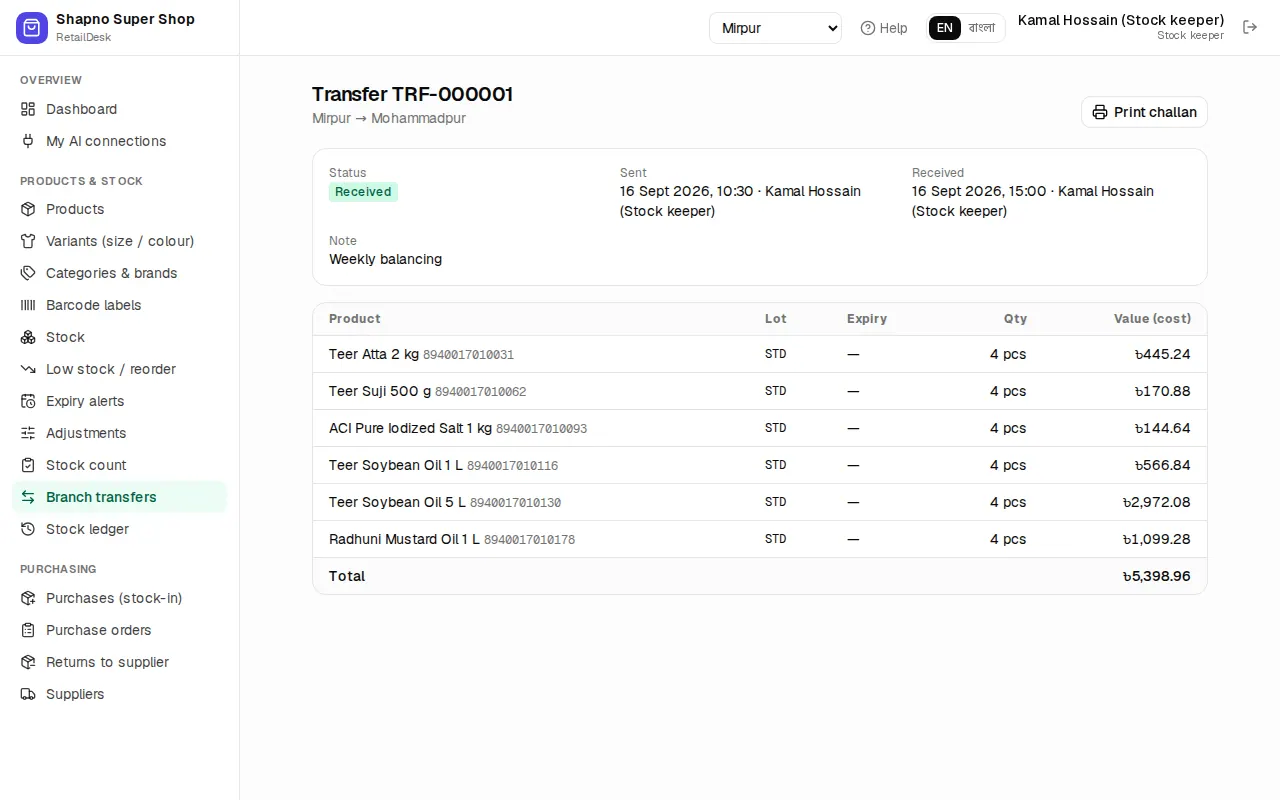
- Check the goods against the list and click Receive stock.
The stock is now in the receiving branch, at the same cost.
Cancel a transfer
While a transfer is still in transit, either branch can Cancel transfer. The stock goes back to the sending branch.