Getting started
Getting started
Sign in, find your way around the screen, switch branch and language, and see which role can do what.
Who it is for:OwnerManagerCashierStock keeper
On this page
RetailDesk runs your shop's counter, stock, purchases, dues and online shop in one place, in Bangla or English. It works in any browser, on a computer at the counter or on a phone. This chapter is the first thing to read.
Sign in
- Open your shop's RetailDesk address, for example
retail.jonakisoft.com, and click Sign in. - Type your Mobile number and Password.
- Click Sign in.
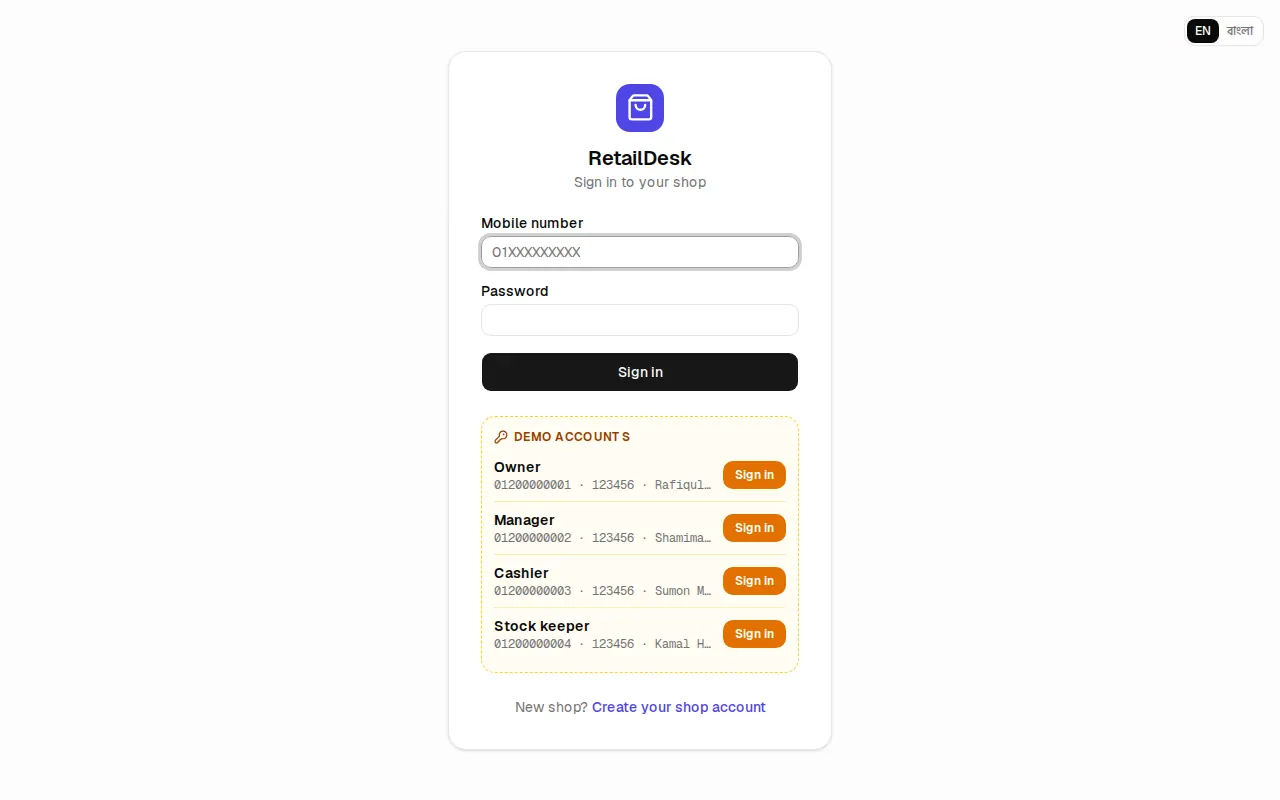
Cashiers go straight to the POS / New sale screen. Everyone else lands on the Dashboard.
Open a new shop account
A new shop owner can open an account at Start free trial (/signup):
- Fill in the Shop name, the First branch / shop and your own name, mobile number and password.
- Click Send verification code. A 6-digit code arrives by SMS.
- Type the code and click Verify and create account.
The trial is free and needs no card. If your reseller has turned self sign-up off, the page tells you who sets up accounts instead.
The screen
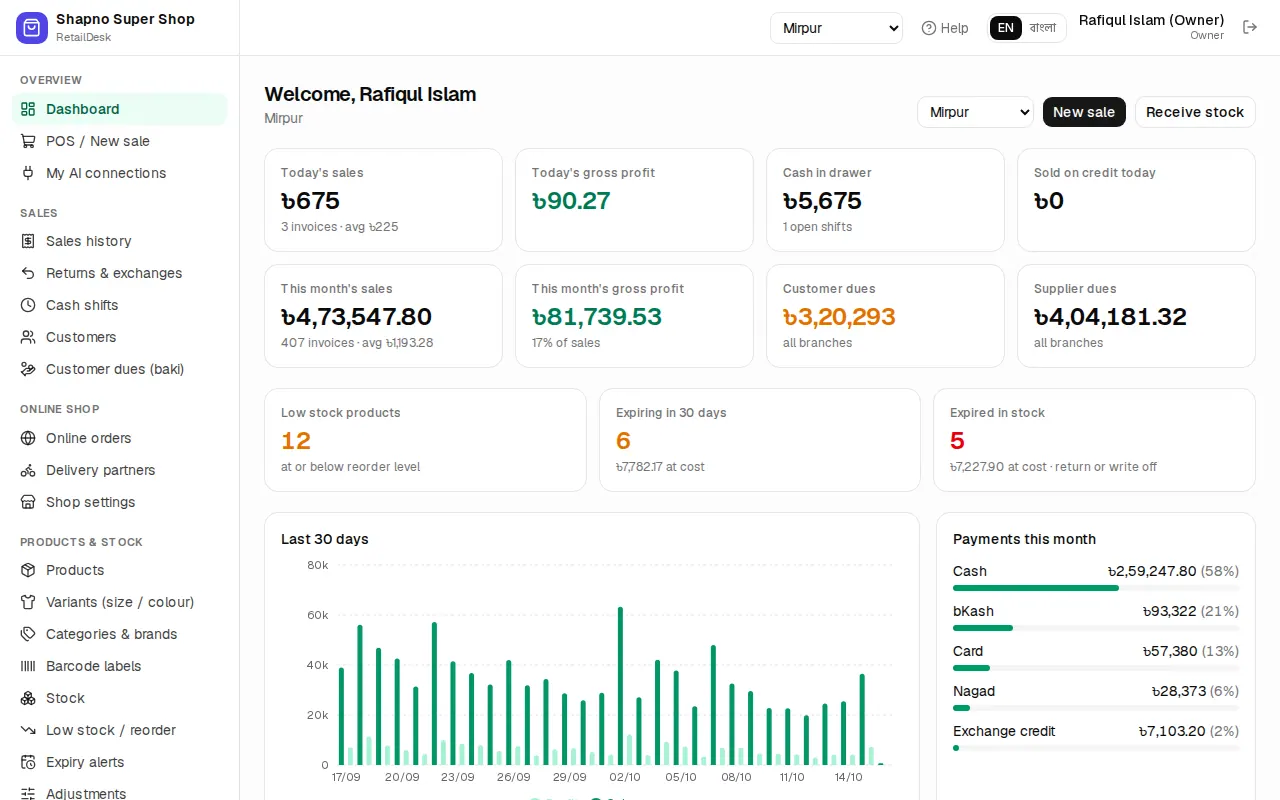
- Left menu: every module, grouped as Overview, Sales, Online shop, Products & stock, Purchasing, Finance, Reports and Admin. You only see the items your role may use.
- Top bar: the branch switcher (only if you work in more than one branch), Help, the EN / বাংলা switch, your name and role, and the sign-out button.
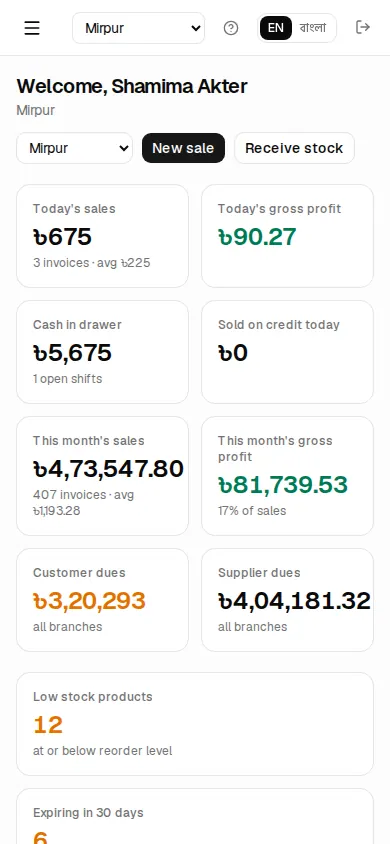
- On a phone the menu opens from the button at the top left.
Help for the page you are on
Click Help in the top bar. The user guide opens in a new tab at the chapter that explains the page you were on, so a half-finished sale is not lost. You can also open the whole guide at /guide, search it, and download it as a PDF.
Branch and language
- Branch: everything you do (sales, stock, purchases) belongs to the branch shown in the top bar. To work in another branch, pick it in the switcher. Staff who are tied to one branch don't see the switcher.
- Language: click EN or বাংলা. The whole app switches at once. Product names show in Bangla when the product has a Bangla name.
The dashboard
The dashboard shows today at a glance:
- Today's sales, Today's gross profit, Cash in drawer and Sold on credit today.
- This month's sales and profit, Customer dues and Supplier dues.
- Low stock products, Expiring in N days and Expired in stock. Click a card to open the list.
- Last 30 days chart, Payments this month, the top 10 products and recent sales.
Owners and managers who aren't tied to a branch can switch the dashboard between one branch and All branches. Cashiers see only their own sales today. Stock keepers see the stock cards and top products, not money.
Roles: who can do what
| Role | Can do |
|---|---|
| Owner | Everything: settings, users, branches, online payments, accounts, AI assistants. No discount limit. |
| Manager | Sell, returns and voids, customers and dues, prices, stock, purchases, supplier payments, expenses, reports, audit log. |
| Cashier | Sell at the POS, returns within the return window, customers. Discounts only up to the cashier limit. |
| Stock keeper | Products, variants, barcode labels, stock counts and adjustments, branch transfers, purchases and suppliers. Can't sell. |
If you open a page your role can't use, you see No access. Ask the owner if you need it.
Where to go next
- Cashiers: POS / New sale and Cash shifts.
- Stock keepers: Products and Stock.
- Owners setting up a new shop: Owner setup.