Products & stock
Stock, counts and expiry
See stock per branch, reorder what is running low, handle expiring and expired goods, correct stock, count the shelves and read the stock ledger.
Who it is for:Stock keeperManagerOwner
On this page
Stock is kept per branch. Selling takes stock out, purchases and returns put it back, and every change is written in the stock ledger. All stock pages show the branch in the top bar; switch branch there to see another one.
Stock overview
Products & stock › Stock shows Products in stock, Stock value (cost), Stock value (price) and Expired stock (cost), then every product with its stock in this branch.
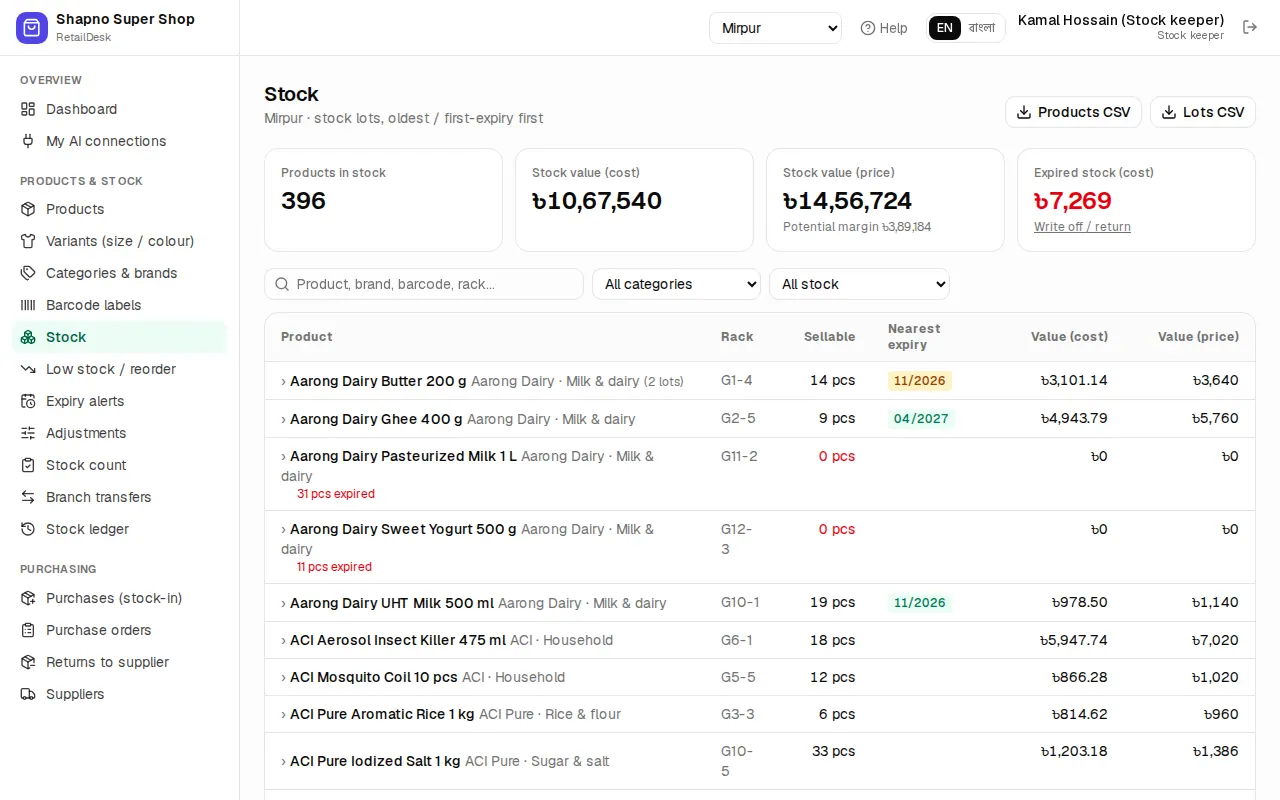
Filter by At/below reorder level, Has expired stock or Negative stock. Products CSV and Lots CSV download the list for Excel.
Lots and expiry dates
Products with Track expiry dates are kept in lots, one per expiry date (for example EXP-2027-04-24). The POS sells the lot that expires first. Products without expiry tracking simply have one stock figure per branch.
Low stock and reorder
Products & stock › Low stock / reorder lists products at or below their reorder level, with stock, Sold 30d, Days left, a suggested Order qty and the Last supplier.
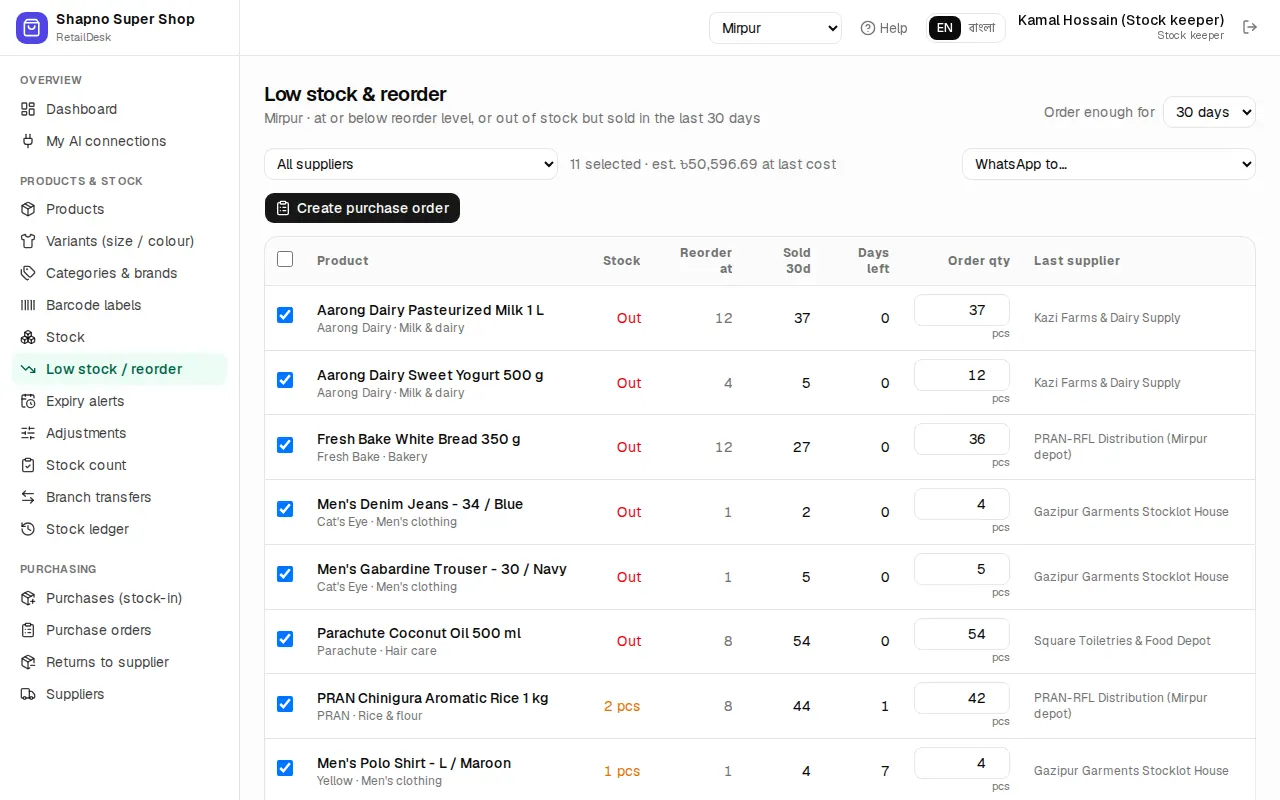
- Choose Order enough for 15, 30, 45 or 60 days.
- Tick the rows you want.
- Click Create purchase order (one order per supplier), or send the list to the supplier on WhatsApp.
Expiry alerts
Products & stock › Expiry alerts has three tabs and a 12-month calendar:
- Quarantine (expired): lots past their date. They can't be sold unless the owner allows it.
- Sell first: lots expiring soon, with a suggested markdown (15% within 30 days, 10% within 60, 5% within 90).
- Next N days: everything expiring in the coming days.
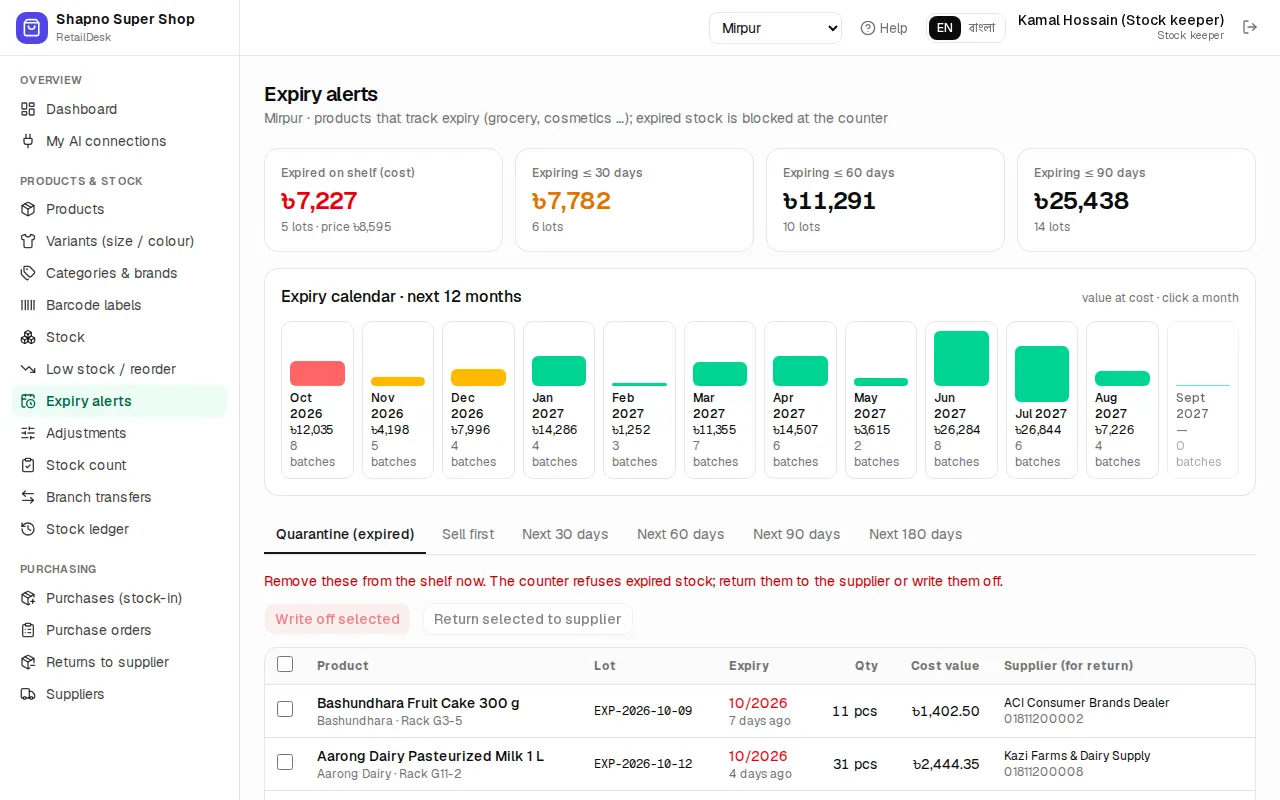
Tick lots and click Write off N selected to remove them from stock, or Return selected to supplier to start a return to supplier.
Adjust stock
For a broken bottle, a lost item or a correction:
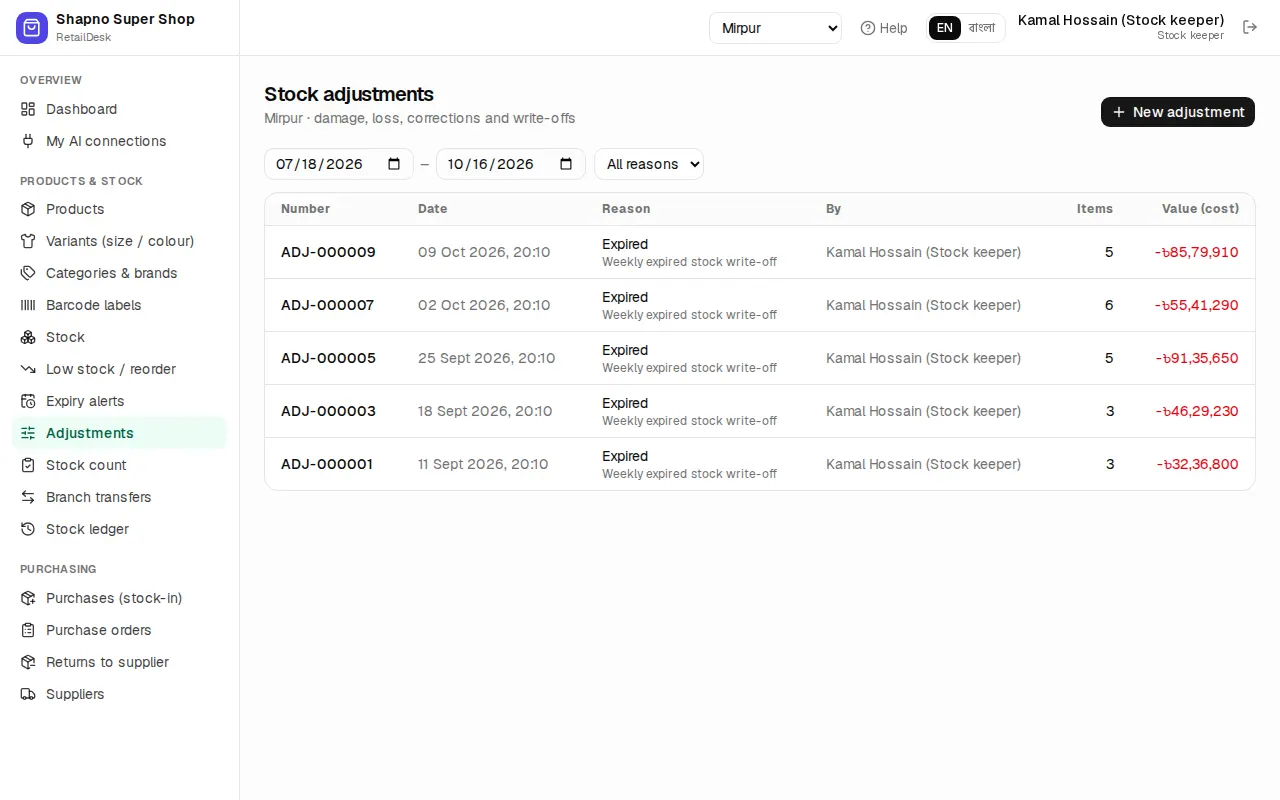
- Go to Products & stock › Adjustments and click New adjustment.
- Choose the reason: Correction, Damaged, Expired, Lost, Theft, Found or Other.
- Add the products and quantities and a note, for example packet torn during delivery.
- Click Post adjustment.
Damaged, expired, lost and theft only take stock out; found only adds. The loss is valued at cost in the reports.
Count the shelves (stock count)
Count regularly, a few shelves at a time, so mistakes are found early.
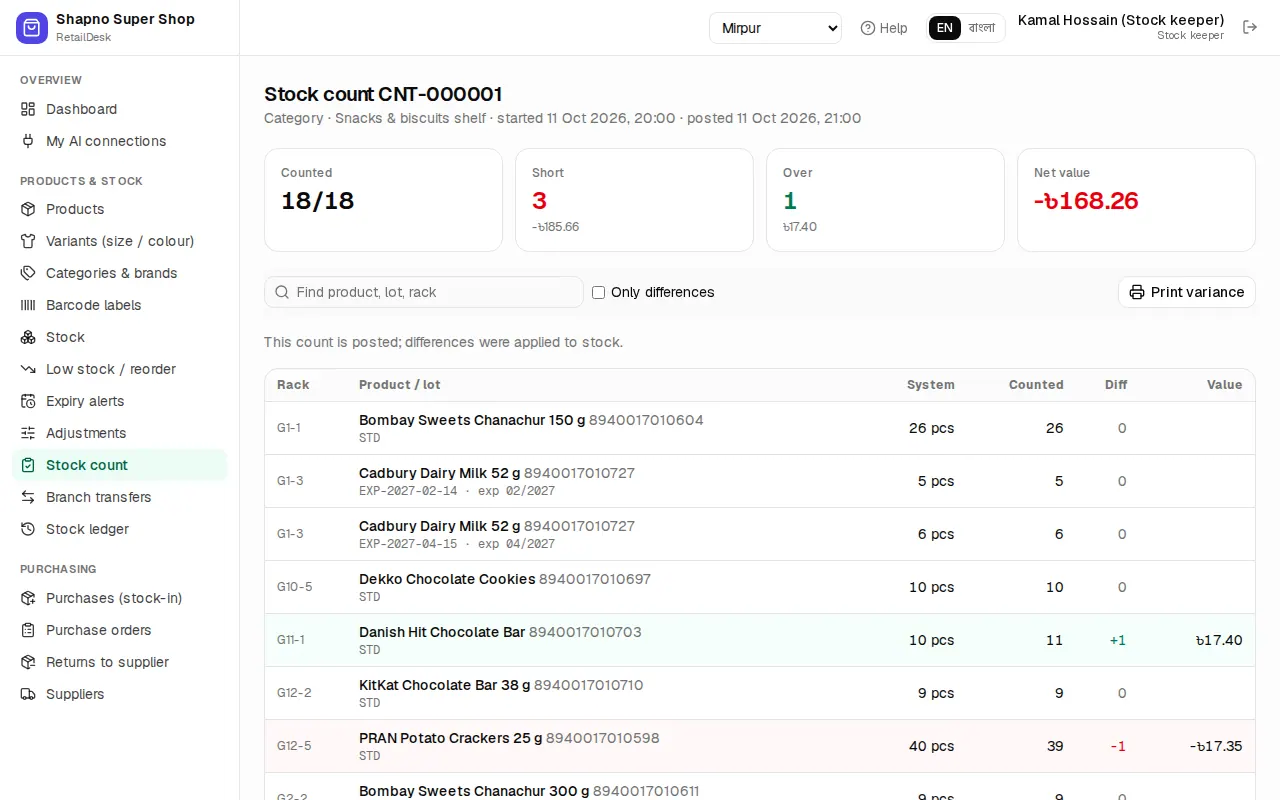
- Go to Products & stock › Stock count and click Start a stock count.
- Choose Everything, One category or One rack, and click Start count.
- Print count sheet if you count on paper, or type the counted quantities straight in. Save progress keeps your work; you can come back later.
- Only differences shows the lines that don't match. Print variance prints them for the manager.
- Click Post count. RetailDesk asks you to confirm the net value change; then stock is set to what you counted. This can't be undone.
Cancel count throws away a count you don't want to post. Selling can go on while you count.
Stock ledger
Products & stock › Stock ledger lists every stock movement: sales, returns, purchases, transfers, adjustments, counts. Filter by type or product. Each line shows when, the product and lot, the quantity, the balance after it and who did it.
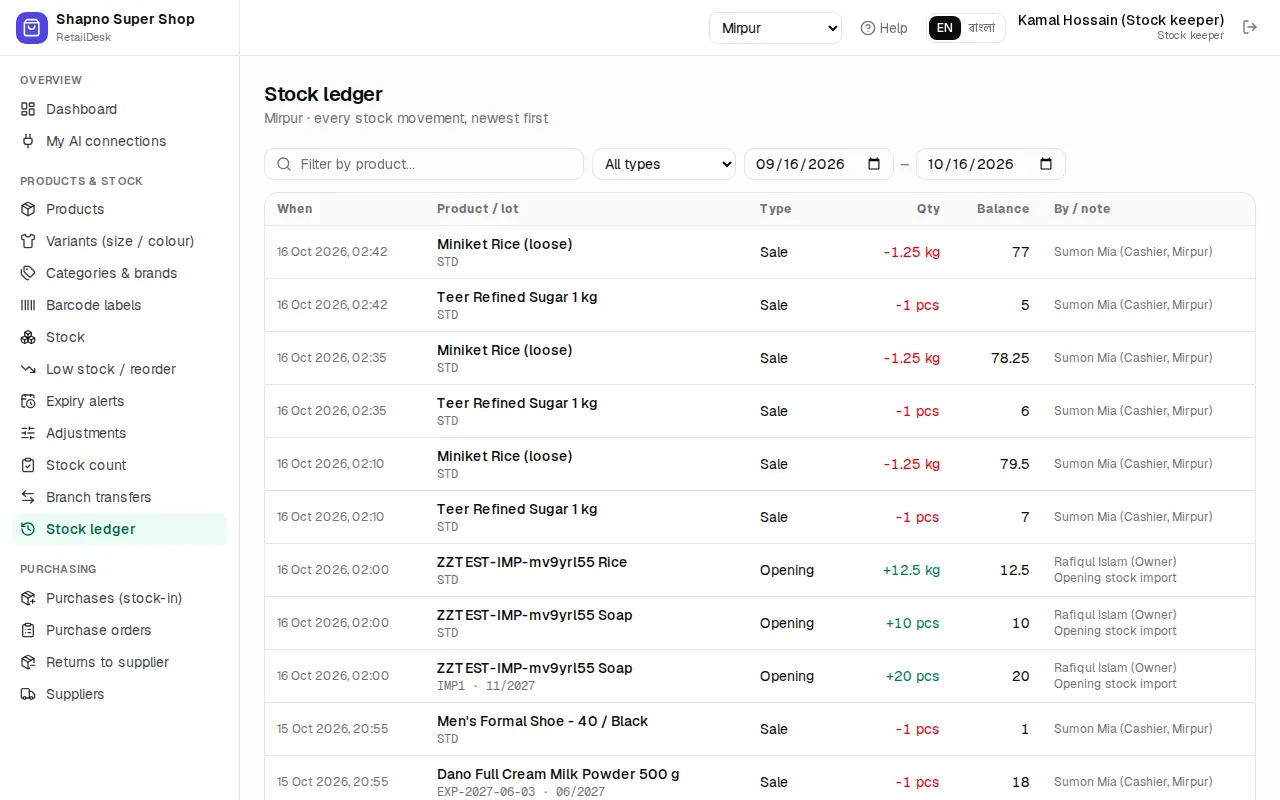
When a figure looks wrong, the ledger tells you where it came from.