Owner & settings
Owner setup
Shop profile, counter rules and discount limits, VAT, loyalty, receipts, SMS, branches, users and roles, printers and the weighing scale, importing data and the audit log.
Who it is for:Owner
On this page
These pages are for the shop owner. Work through them once when you start, and come back when something changes.
Settings
Go to Admin › Settings.
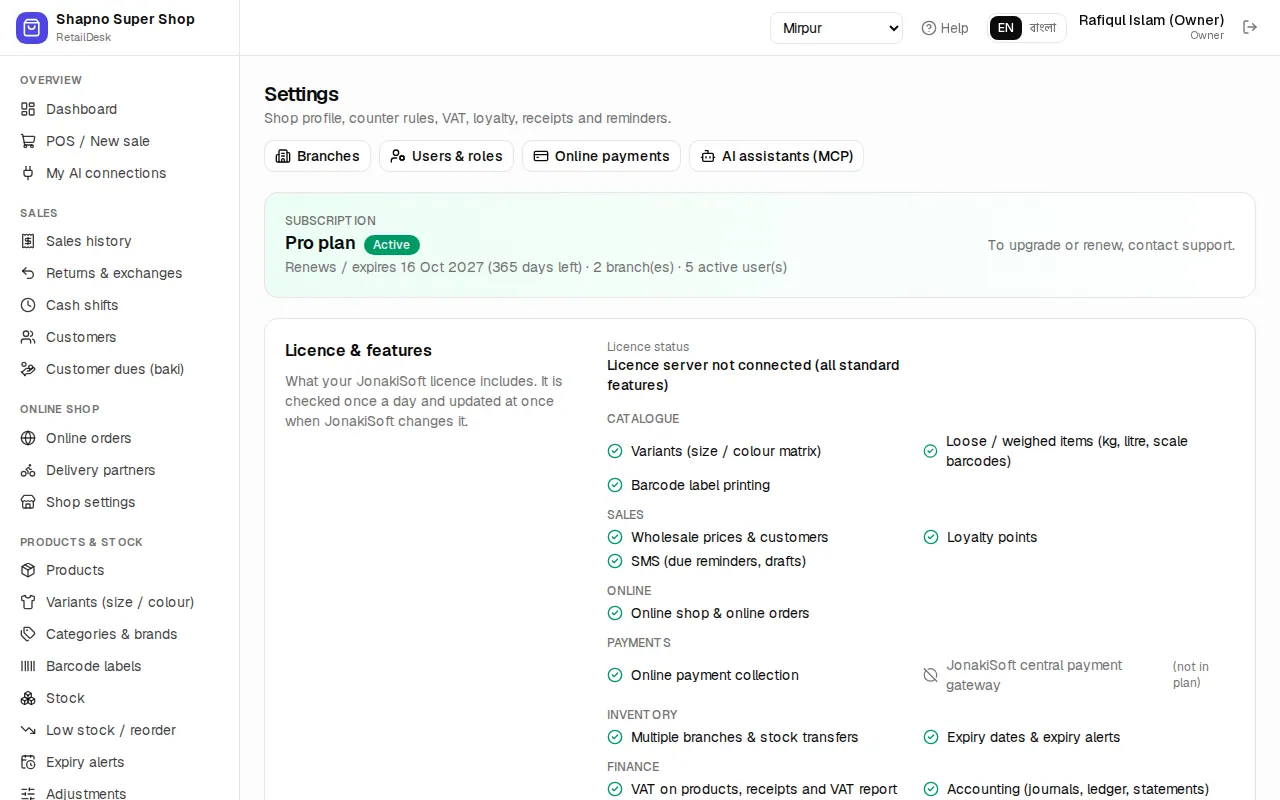
Shop profile: shop name, phone, email, address, trade licence, VAT registration (BIN) and logo link. These print on receipts and invoices. Click Save profile.
Counter (POS) rules:
- Default discount (%): a discount every bill starts with (usually 0).
- Cashier discount limit (%) and Manager discount limit (%): the most each role may give on a bill. The owner has no limit.
- Return / exchange window (days): how long cashiers may take returns. After that, only a manager.
- Round bills to whole Taka.
- Allow selling without stock: keep this off once your stock figures are right.
- Allow selling expired stock: keep this off.
- Wholesale customers automatically get the wholesale price.
VAT: Default VAT rate (%) and Prices include VAT (new products). Each product can have its own rate (see Products).
Loyalty points: Enable loyalty points, Points earned per ৳100 spent, Value of 1 point when redeemed (৳) and Minimum points before redeeming.
Alerts & SMS reminders: Near-expiry warning (days), Due reminder every (days) and Send SMS (due reminders, online orders).
Click Save settings at the bottom.
Receipts
In Settings › Receipts choose the paper size (80 mm, 58 mm or A4), the Receipt & SMS language (Bangla or English), the Default language of the app, a Header line and a Footer note, for example Goods once sold are exchanged within 7 days with the receipt.
Branches
Admin › Branches: click Add branch and fill in the Branch name, a short Code (it goes on invoice and transfer numbers), phone and address.
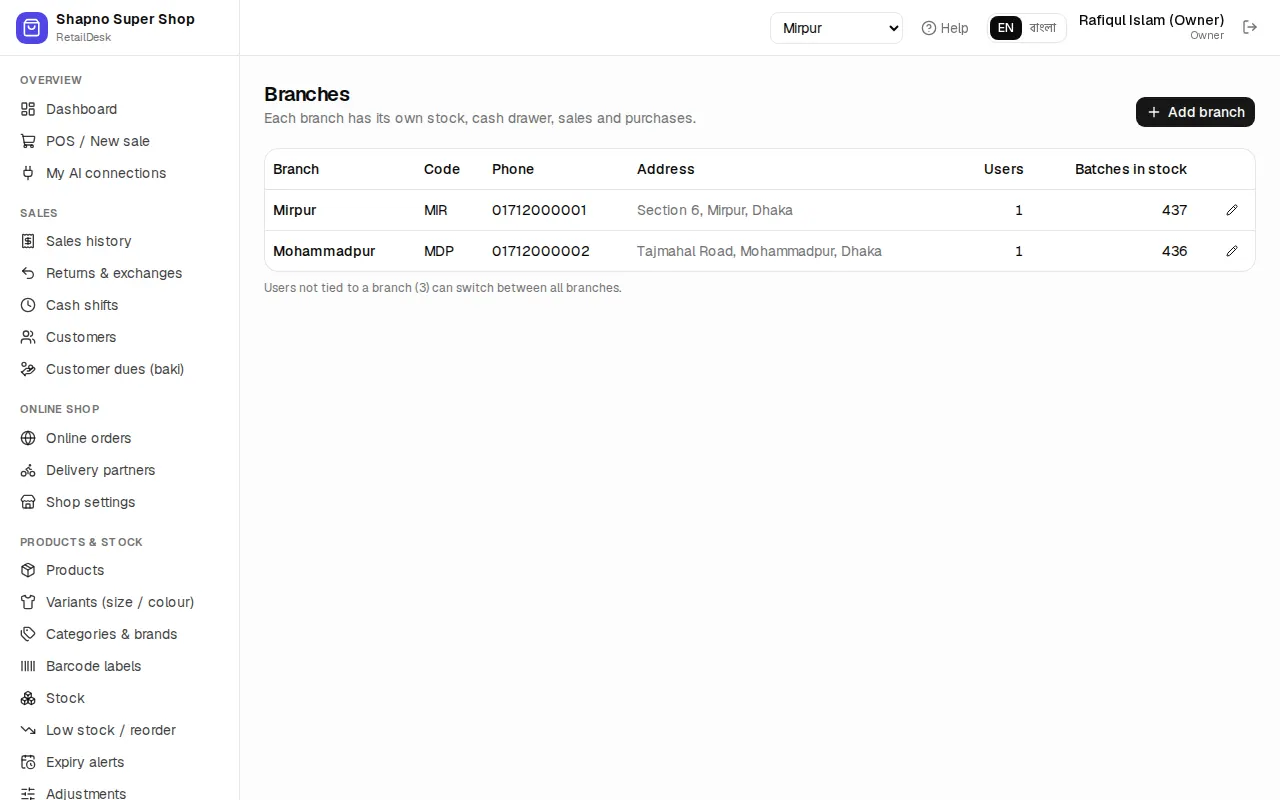
Untick Active to close a branch; it disappears from the branch switcher but keeps its history. Each branch has its own stock, cash drawer and invoice numbers.
Users and roles
Admin › Users & roles: click Add user.
- Type the Full name and Mobile (login).
- Choose the Role: Owner, Manager, Cashier or Stock keeper (see Getting started).
- Choose the Branch. A user tied to a branch works only there. Leave it as All branches for someone who moves between branches.
- Set a password (at least 6 characters) and save.
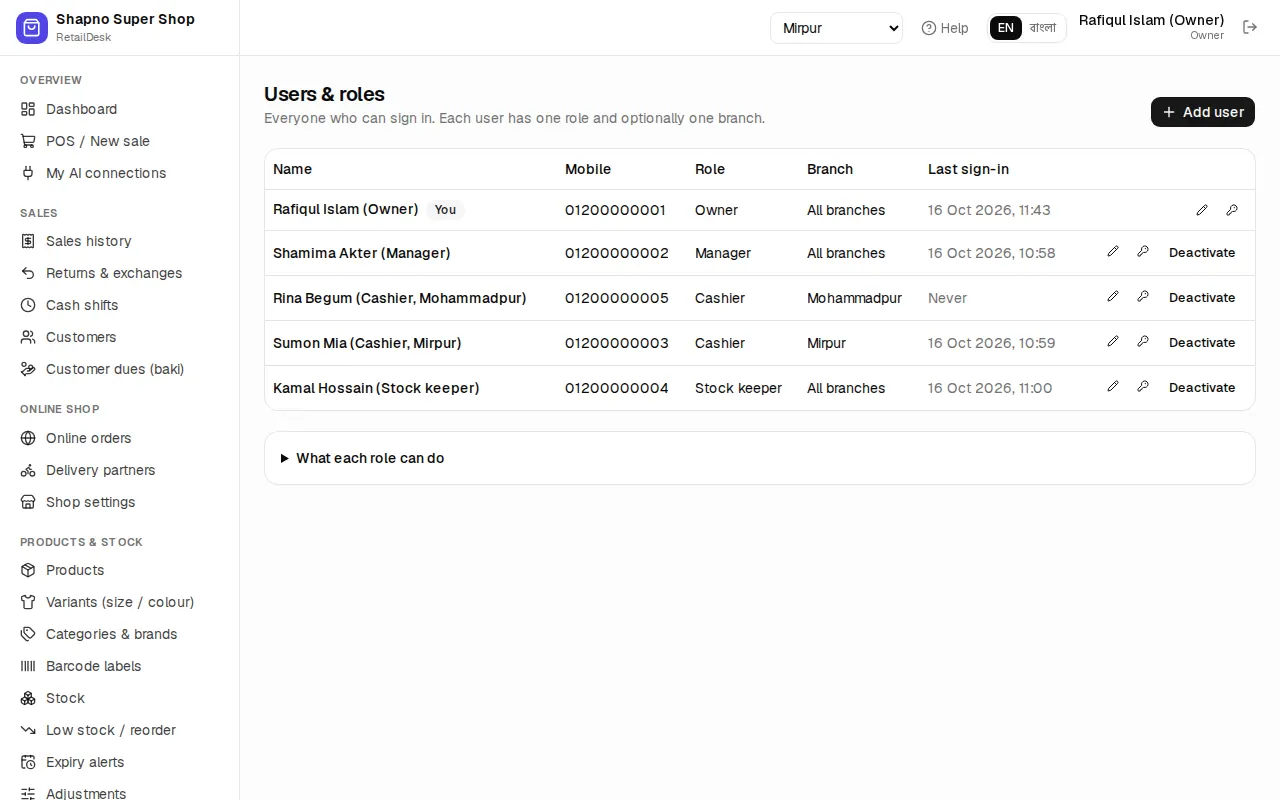
The key button sets a new password and signs the user out everywhere. Deactivate stops someone from signing in without deleting their sales history. Only an owner can make another owner.
Printers, labels and the weighing scale
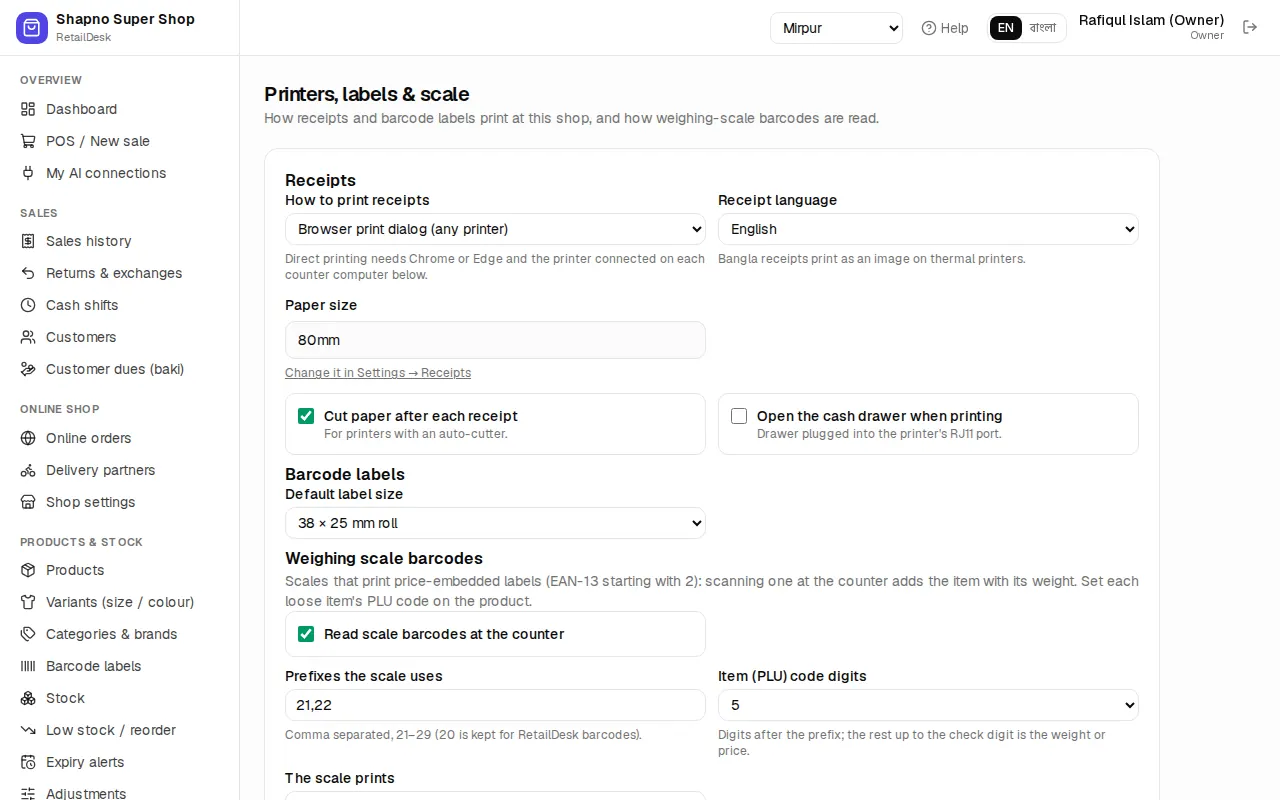
Admin › Printers, labels & scale:
- How to print receipts: Browser print dialog (any printer) or Direct to thermal printer (no dialog). Also Cut paper after each receipt and Open the cash drawer when printing.
- Default label size for barcode labels.
- Weighing scale barcodes: Read scale barcodes at the counter, the Prefixes the scale uses (21–29), the Item (PLU) code digits (4, 5 or 6) and whether The scale prints the weight in grams or the price in Taka. Copy these from the scale's manual or ask the scale technician.
- Printers on this computer: Connect USB printer or Connect serial / Bluetooth, then Test print, Open drawer and Test label. This is saved per computer, so do it on each counter PC.
Import your data
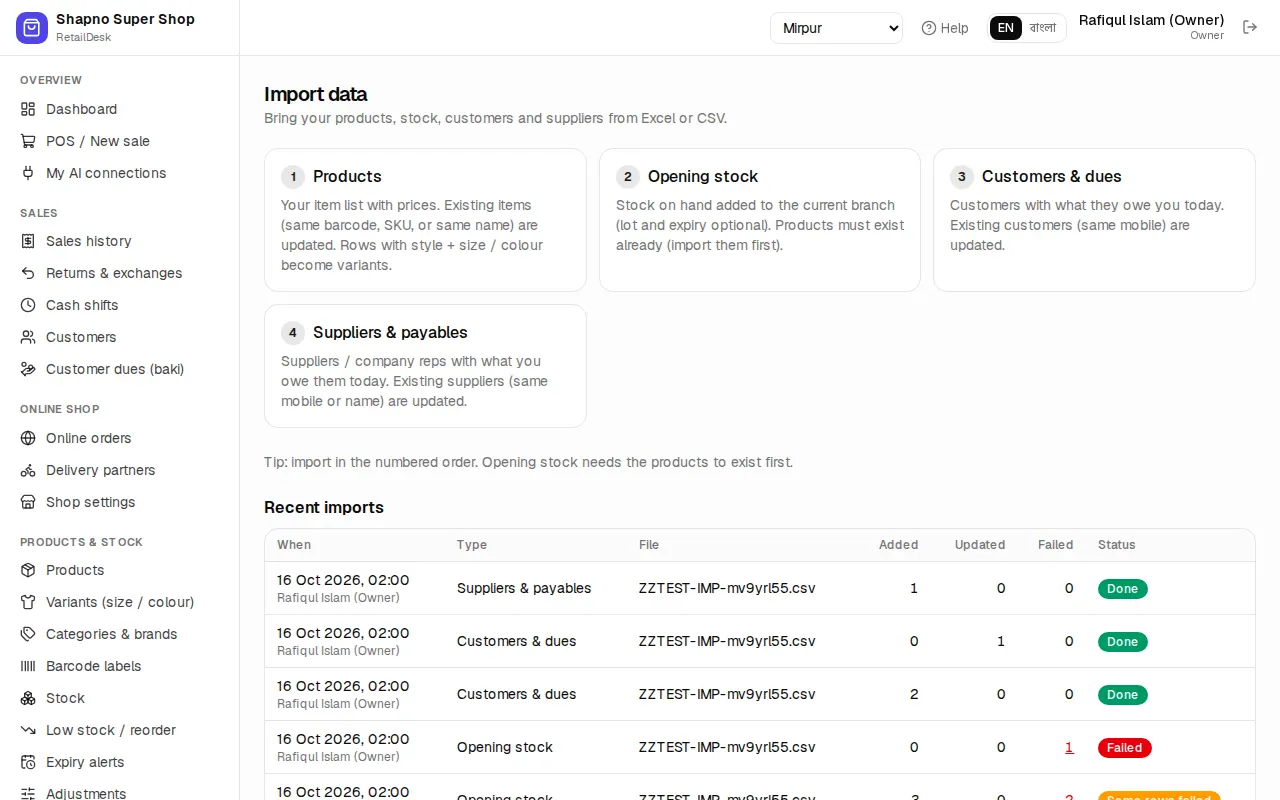
Moving from another system or a spreadsheet? Admin › Import data brings it in, in this order:
- Products
- Opening stock
- Customers & dues
- Suppliers & payables
For each: Download sample file, fill it in Excel, Choose Excel or CSV file, Match your columns, Check before importing, then Import N rows. Rows with problems can be downloaded with Download failed rows, fixed and imported again.
Audit log
Admin › Audit log (owner and manager) records who did what and when: price changes, voids, returns, stock adjustments, user changes, settings. Filter by user, record or action.