Purchases & money
Purchases and suppliers
Receive stock from suppliers at cost, order with purchase orders, pay supplier dues, and send goods back to the supplier.
Who it is for:Stock keeperManagerOwner
On this page
Every carton that comes into the shop is entered as a purchase (stock-in). The purchase adds the stock, updates the cost price, and records what you owe the supplier.
Suppliers
Go to Purchasing › Suppliers and click New supplier:
- Supplier / company name *, Contact person (sales rep), Phone, WhatsApp (for orders), email and address.
- Opening balance (৳ we owed at start): what you already owed when you started RetailDesk. A negative number is an advance you paid. Only a manager or the owner can change it.
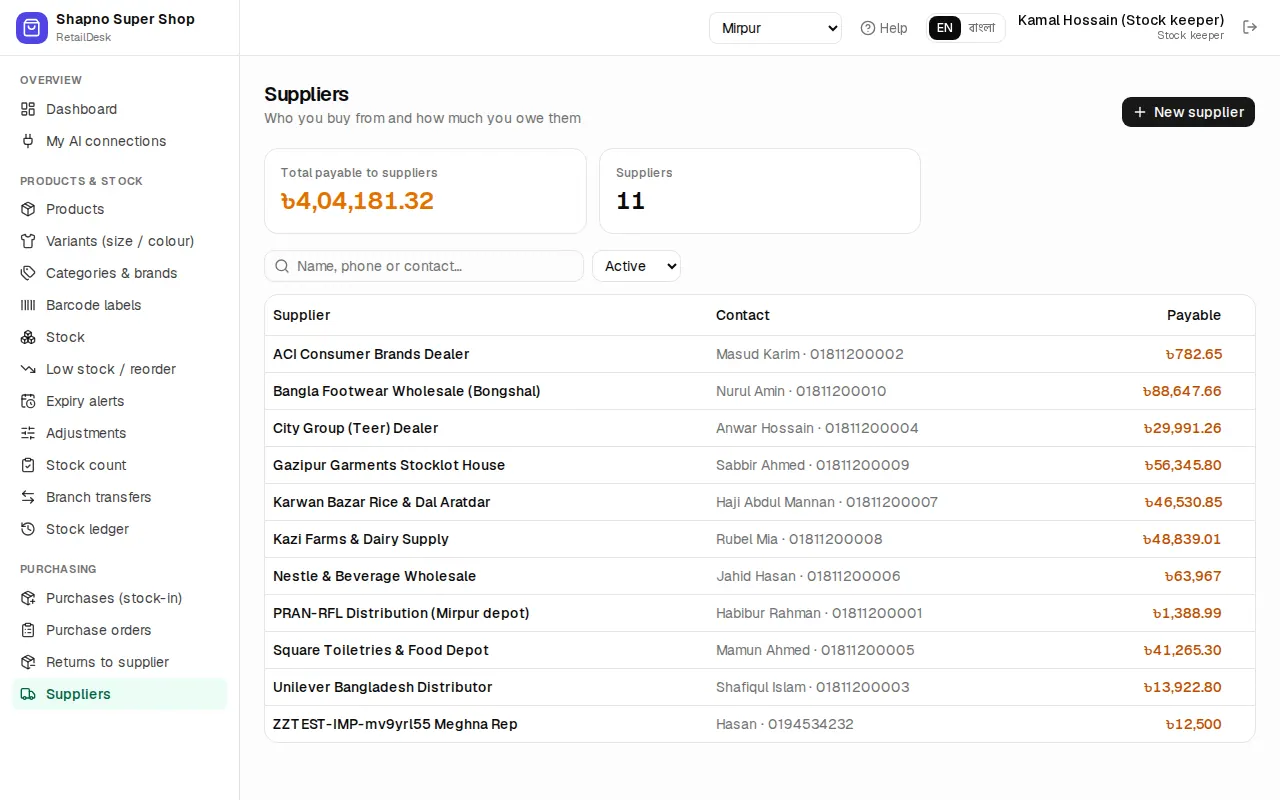
The supplier page shows the Supplier statement: each bill (+), each payment or return (−) and the balance, with Pay, New purchase and Print statement.
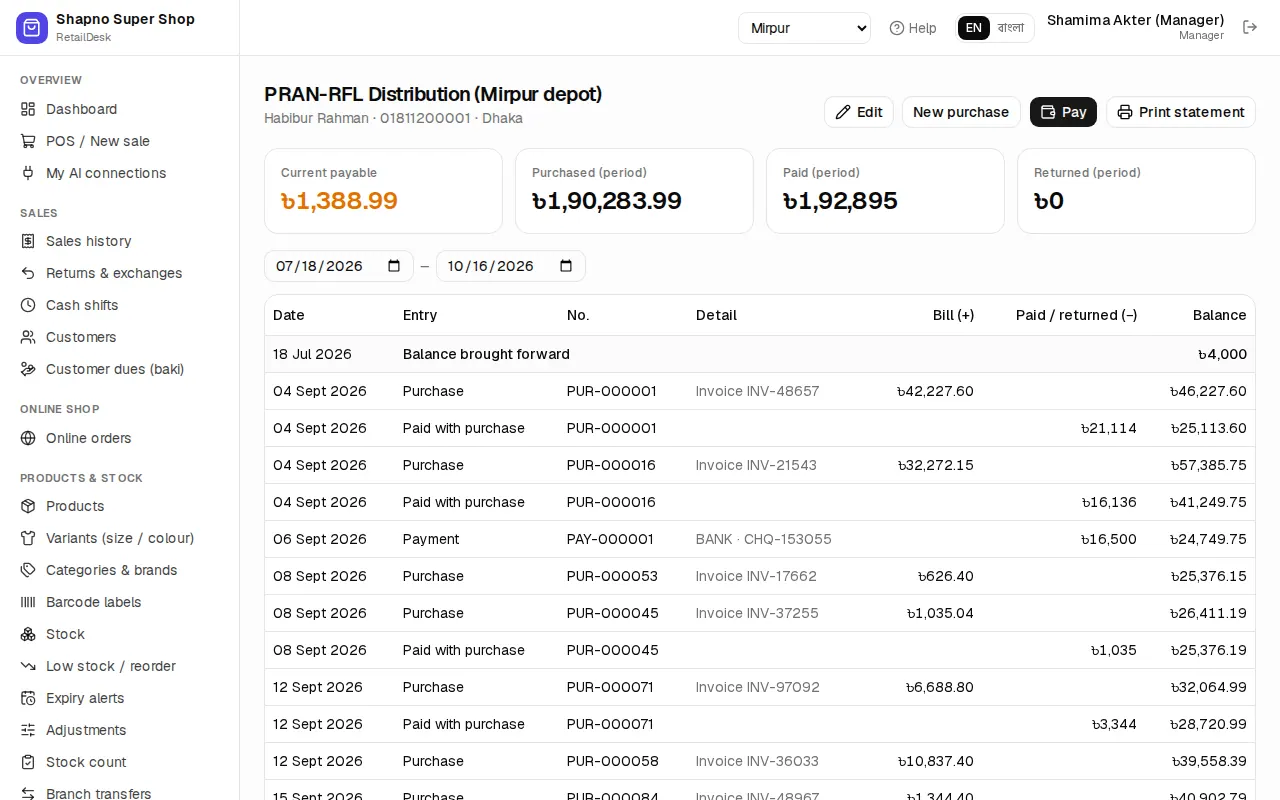
Receive stock (new purchase)
- Go to Purchasing › Purchases (stock-in) and click New purchase (or Receive stock on the dashboard).
- Choose the Supplier * and type the Supplier invoice / challan no.
- Scan or search each product. For each line fill in:
- Qty * and Free (bonus items that cost nothing).
- Cost ৳ / unit.
- Price ৳ and Wholesale ৳ if the selling price changes (manager or owner).
- Disc ৳ on the line.
- Expiry, required for products that track expiry. Lot can stay empty.
- At the bottom: Bill discount ৳, Other charges (transport…) ৳ and VAT ৳. Discount and transport are spread over the lines, so the cost per unit is the real cost.
- Paid ৳: what you pay now (Pay full … fills the total), the Method and the From account. Leave it at 0 to owe the whole bill.
- Click Save purchase & add stock (
Ctrl+Enter).
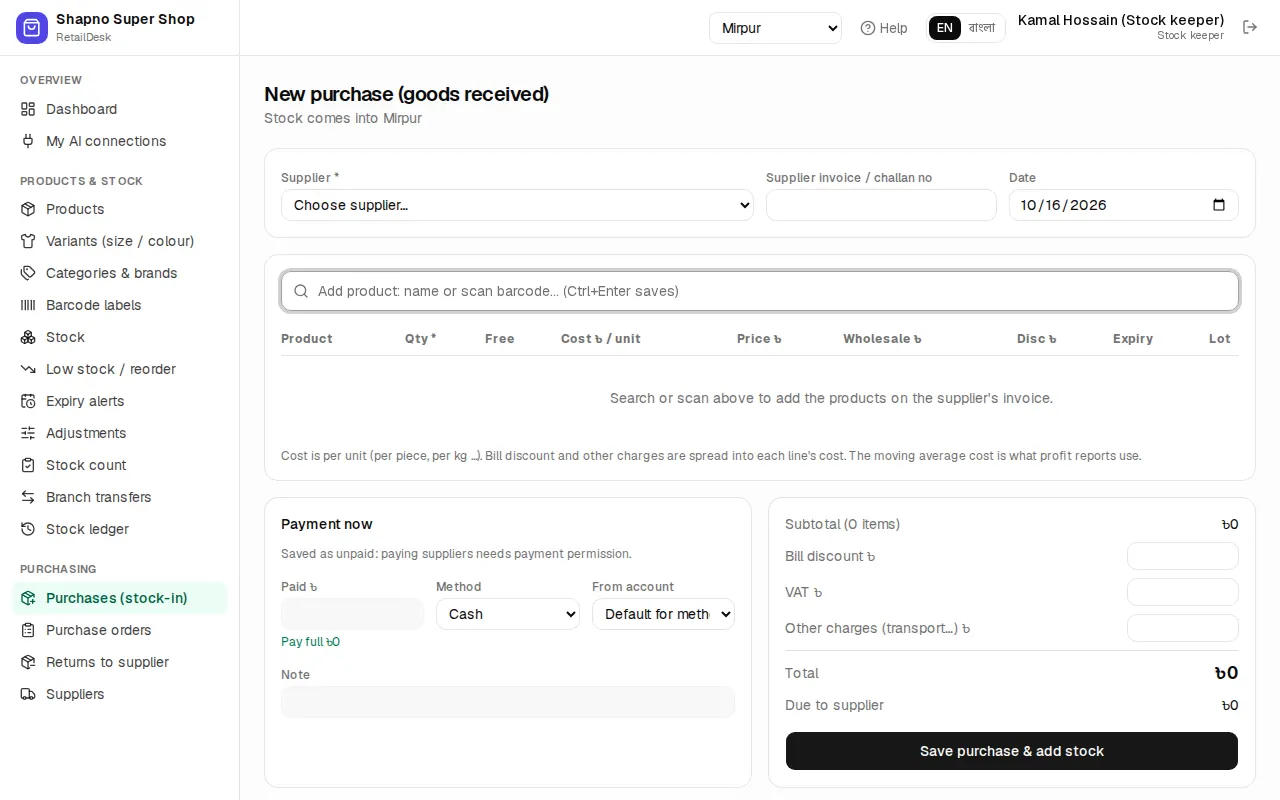
The stock is in your branch at once, and the product's average cost is updated.
The purchase page
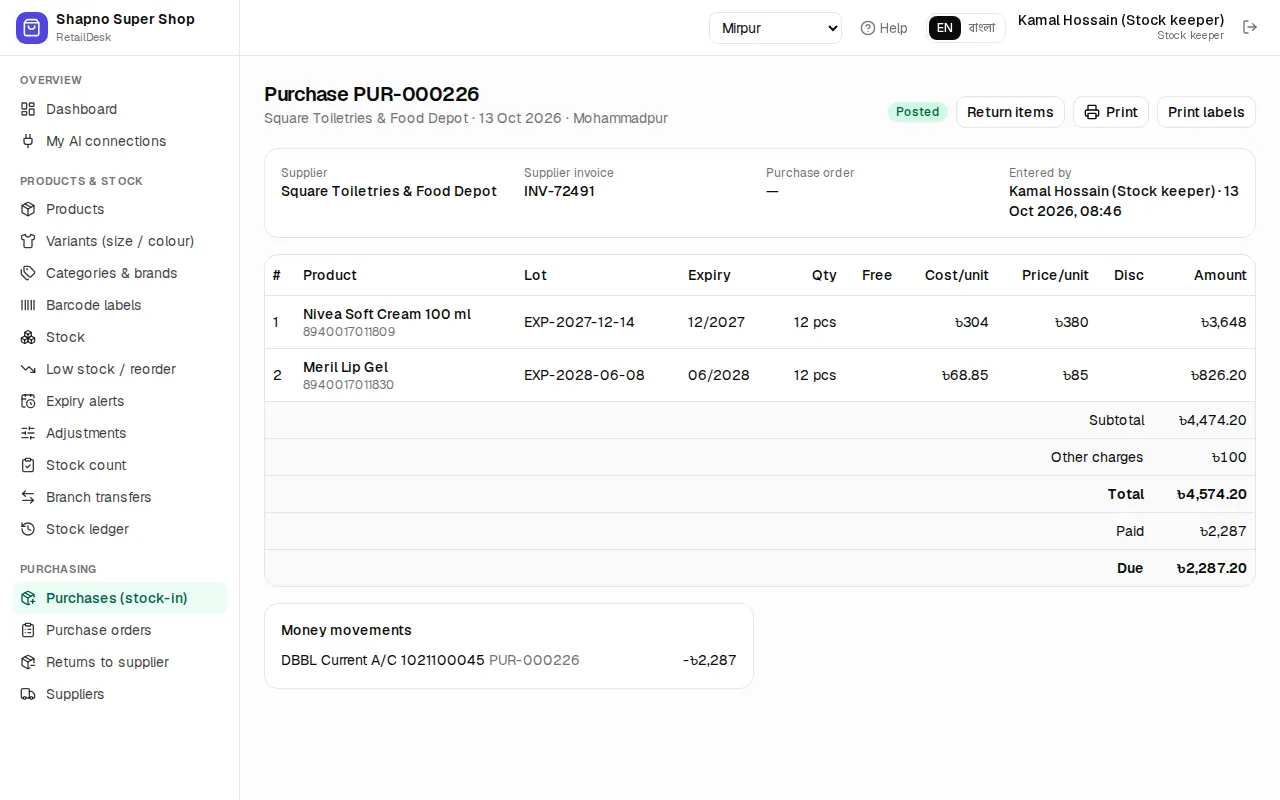
From a saved purchase you can Print labels (one per item received), Return items to the supplier, or Cancel purchase. Cancelling needs a reason, a manager or the owner, the receiving branch, and no returns made from it yet.
Purchase orders
A purchase order (PO) is what you ask the supplier to bring. It doesn't change stock.
- Go to Purchasing › Purchase orders and click New order, or create one from Low stock / reorder.
- Choose the Supplier * and Expected delivery, add products with an estimated cost, and click Save as draft.
- Mark as sent when you have ordered, or Send on WhatsApp to send the list to the supplier.
- When the goods arrive, click Receive goods. A new purchase opens with the lines filled in; check the quantities and costs and save.
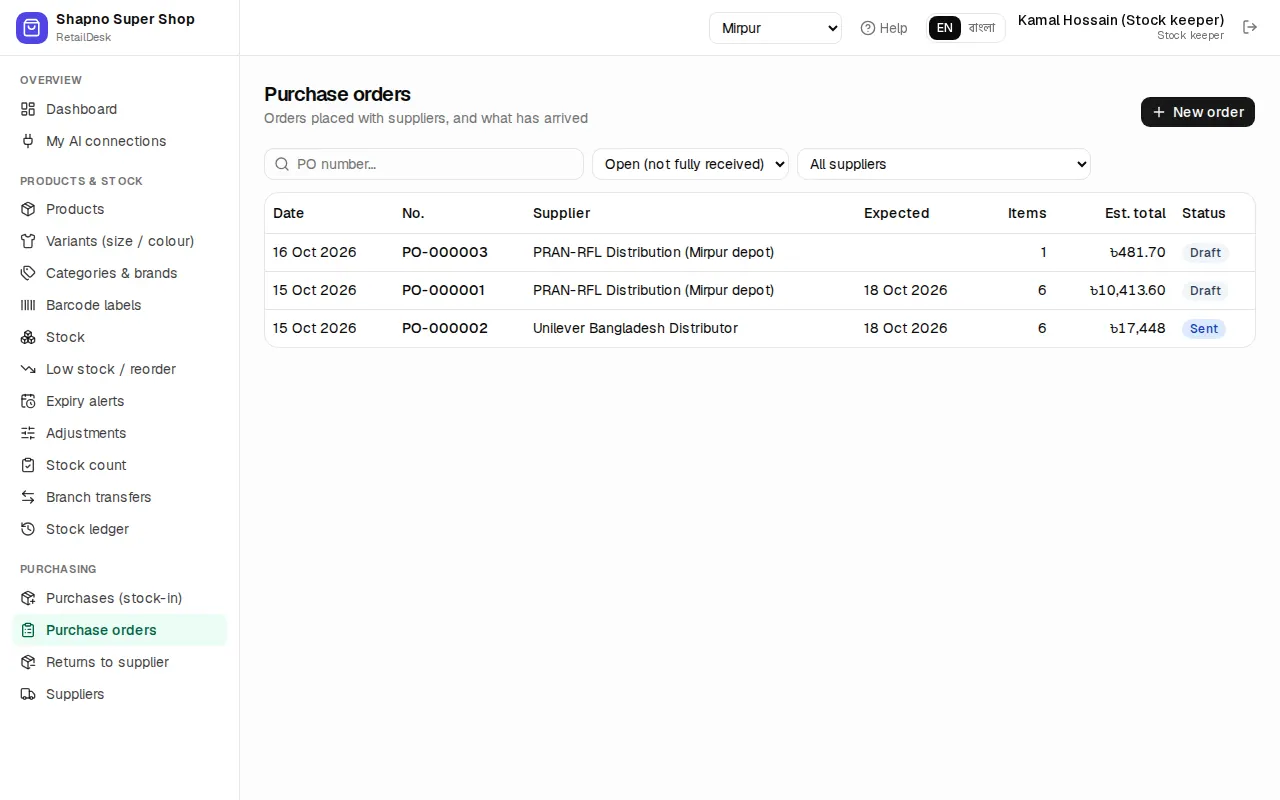
The status shows Draft, Sent, Partial, Received or Cancelled. Close order ends a partly received order. AI assistants can prepare a PO as a draft for you to check (see AI assistants).
Pay a supplier
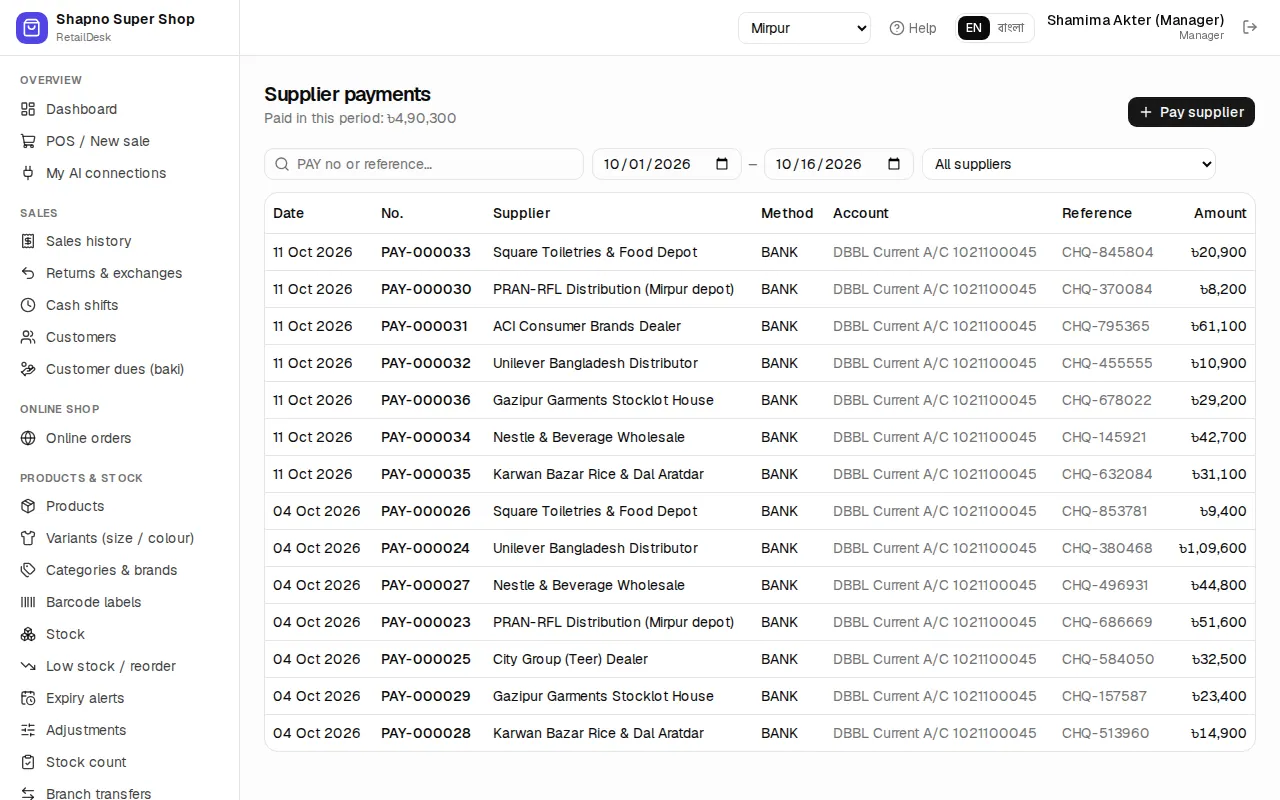
- Go to Purchasing › Supplier payments and click Pay supplier (or Pay on the supplier page).
- Choose the Supplier , type the Amount ৳ , the Method, the Paid from account and a Reference (trx id / cheque no).
- Click Save payment. Print voucher prints a payment voucher.
Paying more than you owe is kept as an advance. Supplier payments need a manager or the owner.
Return goods to a supplier
- Go to Purchasing › Returns to supplier and click New return (or Return items on the purchase, or Return selected to supplier in Expiry alerts).
- Choose the supplier, find the stock lot, type the Qty and the reason.
- Click Save return & remove stock.
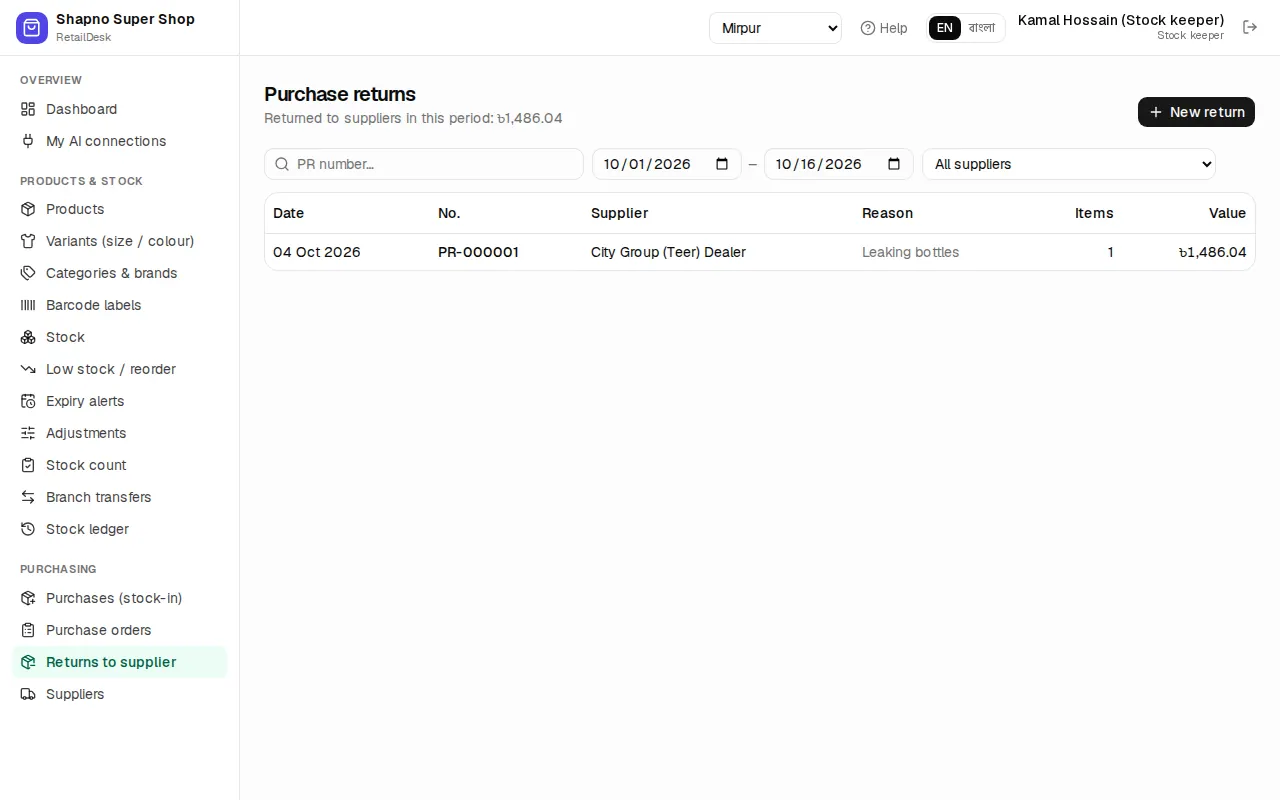
The return is valued at what you paid and reduces what you owe that supplier.