Online shop
Online shop and online orders
Open your own online shop, take orders with cash on delivery or online payment, and move each order from new to delivered.
Who it is for:OwnerManagerCashier
Every RetailDesk shop can have its own online shop at /shop/<your-shop>. Customers browse your products, order, and pay on delivery or online. Orders land in Online shop › Online orders, where staff confirm, pack and deliver them.
Set up the shop
Go to Online shop › Shop settings (owner).
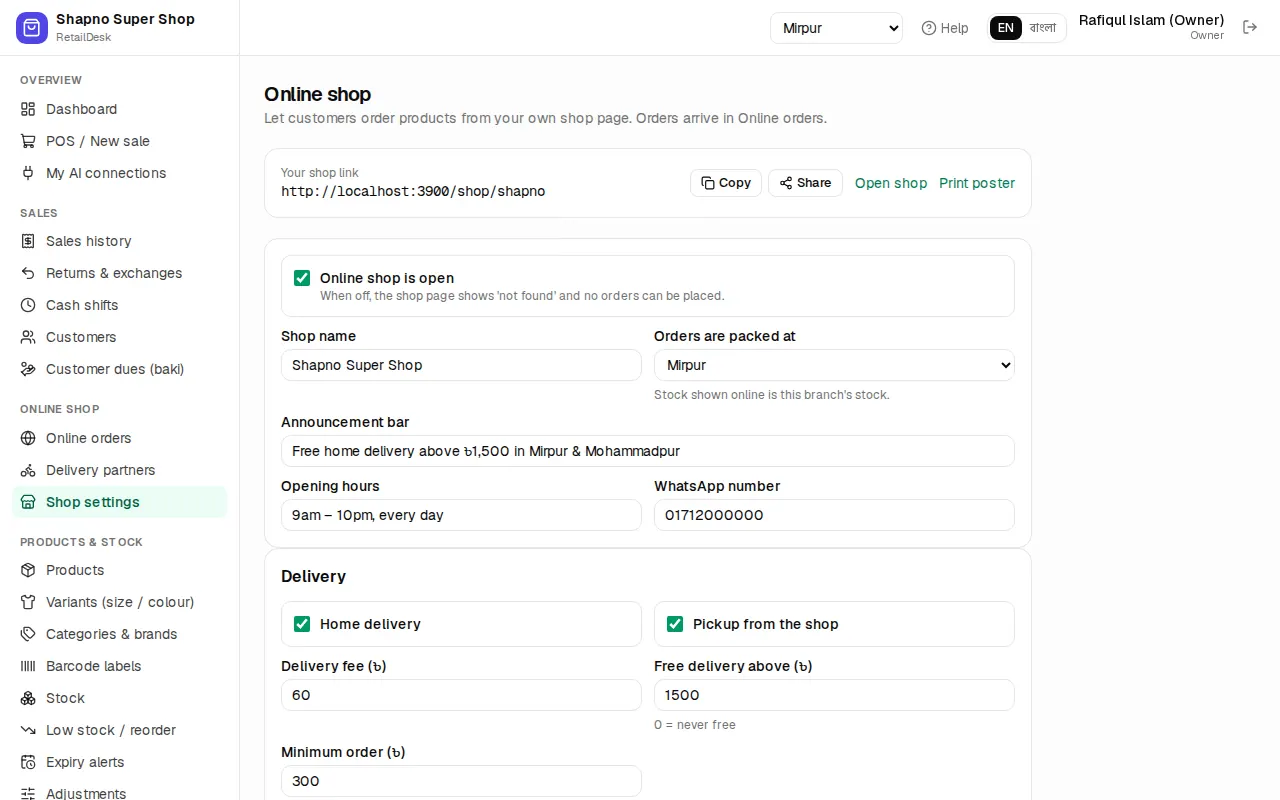
- Tick Online shop is open. While it is off, the shop link shows not found.
- Check Shop name and choose Orders are packed at: the branch whose stock the online shop sells.
- Optional: an Announcement bar (for example "Free delivery in Mirpur today"), Opening hours and a WhatsApp number.
- Delivery: tick Home delivery and/or Pickup from the shop. Set the Delivery fee (৳), Free delivery above (৳) (0 = never free) and Minimum order (৳) (0 = no minimum). Under Delivery areas click Add area for a different fee per area.
- Payment: tick Cash on delivery / pay at pickup. Add a bKash merchant / personal number and Nagad number if customers may send money and type the TrxID. Card and gateway payments are set up in Online payments.
- Click Save shop settings.
At the top, Your shop link has a copy button, Open shop and Print poster (a QR poster for the counter).
A product shows in the online shop when it is active and Show in the online shop is ticked on the product (see Products).
What the customer sees
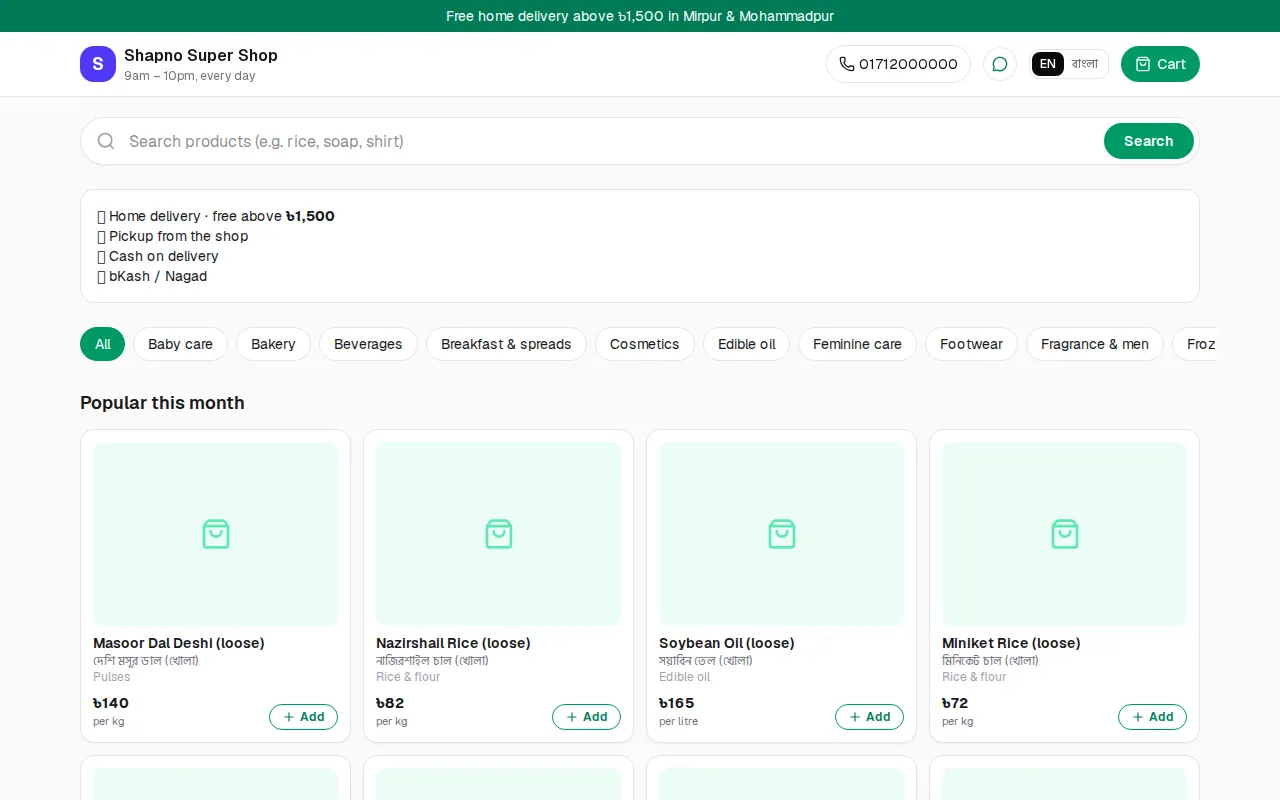
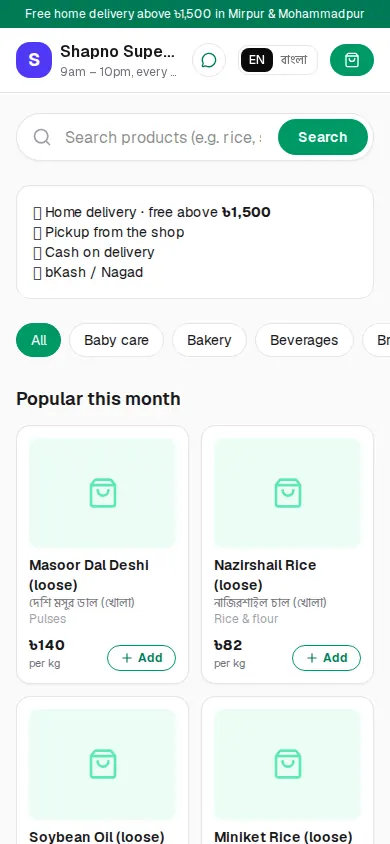
The customer searches or picks a category, clicks Add, and opens the cart. They fill in their name, mobile number, delivery or pickup, area and address, choose how to pay and click Place order (or Place order & pay for online payment).
After ordering they get a tracking page (the link is also sent by SMS). It refreshes itself and shows each step, the courier and the rider. While the order is still new, the customer can cancel it there.
The order queue
Online shop › Online orders has tabs: New, To pack, Packed, Out for delivery, Delivered and Cancelled / returned. Search by order number, phone or name.
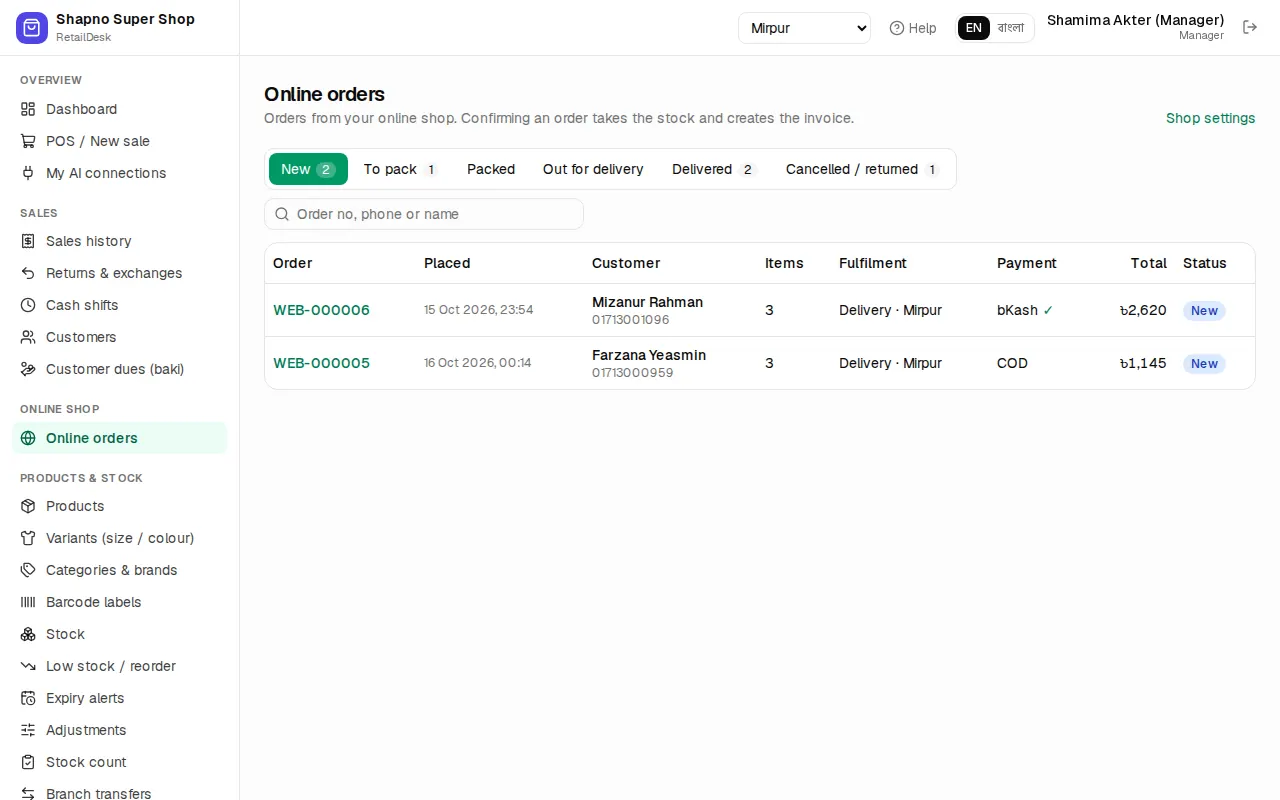
Keep this page open at the counter: it checks for new orders every 20 seconds, beeps, and shows New online order ….
Handle an order step by step
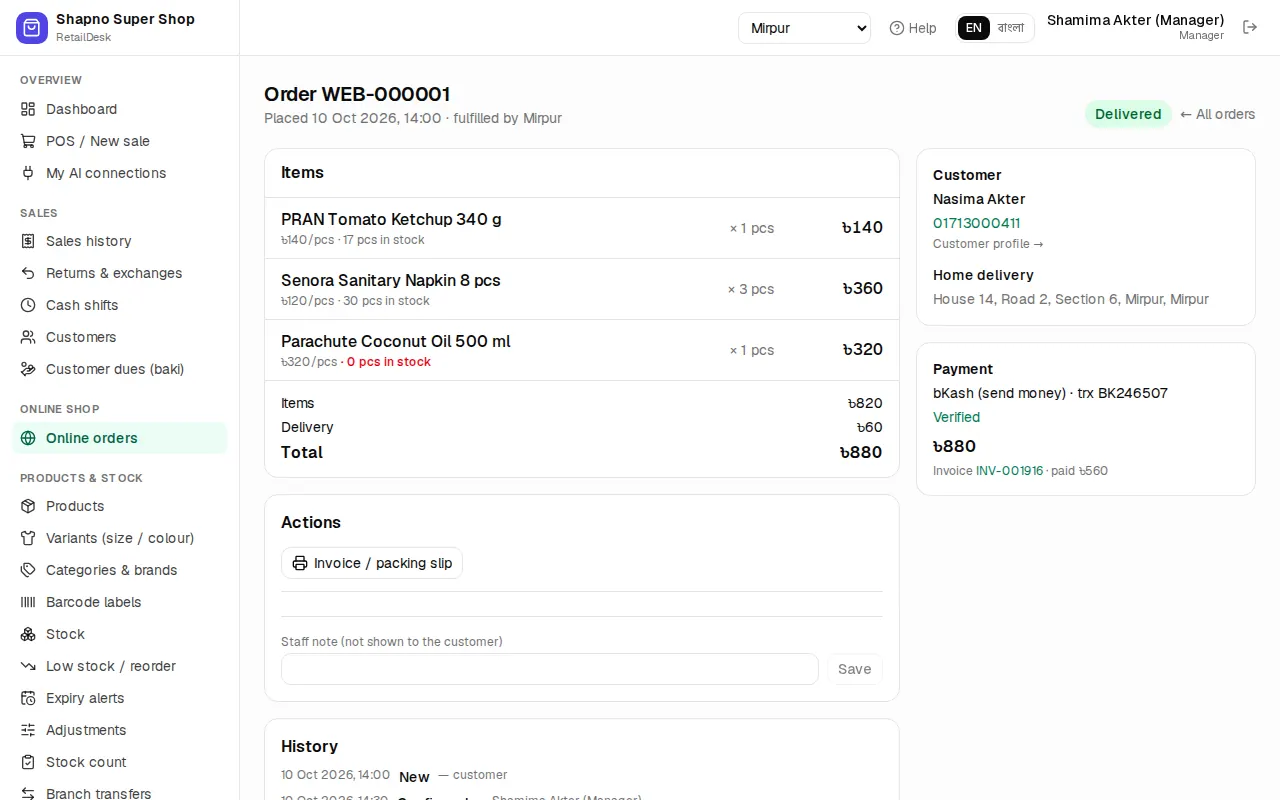
- Check the order. Open it and click Start review. While it is new you can change quantities, swap a product (⇄), add a product, give a Discount (৳) or change the Delivery fee (৳), then Save items.
- Check the payment. For bKash or Nagad send-money, check the TrxID in your merchant app and click Mark verified. If an online payment never arrived, Switch to COD.
- Confirm. Click Confirm order. This creates the invoice and takes the stock. If something is short you are asked whether to confirm anyway.
- Pack. Pick the items, print Invoice / packing slip and click Mark packed (pickup orders: Ready for pickup).
- Send. Book a courier (see Delivery partners) or click Send out for delivery and type the Rider name for your own rider.
- Finish. When the rider brings the money, click Delivered (pickup: Customer collected) and choose which cash account it goes into.
If the customer refuses the parcel, a manager clicks Returned by customer: the invoice is voided and stock comes back. Cancel order asks for a reason, which the customer sees. After confirming, only a manager can cancel.
Use Staff note (not shown to the customer) for anything the team should know.