Selling at the counter
Sales history, returns and exchanges
Find any invoice, reprint it, take a return or exchange from it, and void a wrong sale.
Who it is for:CashierManagerOwner
On this page
Every sale is saved as an invoice. From the invoice you can reprint the receipt, take back items, swap them for others, or (manager only) void the whole sale.
Sales history
Go to Sales › Sales history. It opens on today. The cards at the top show Invoices, Sales, Collected at sale and Left as due for the dates you picked.
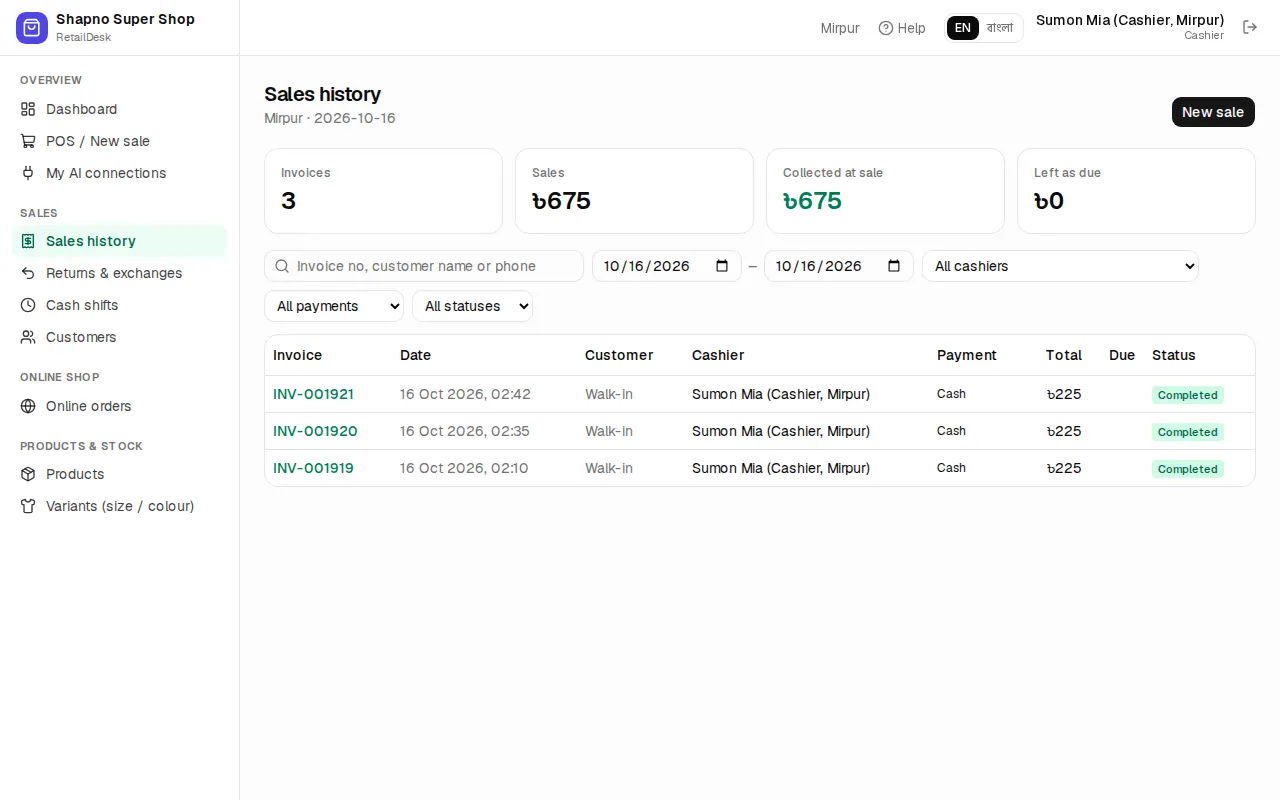
Search by invoice number, customer name or phone, change the dates, or filter by cashier, payment (for example Has due) and status. Click an invoice to open it.
The invoice page
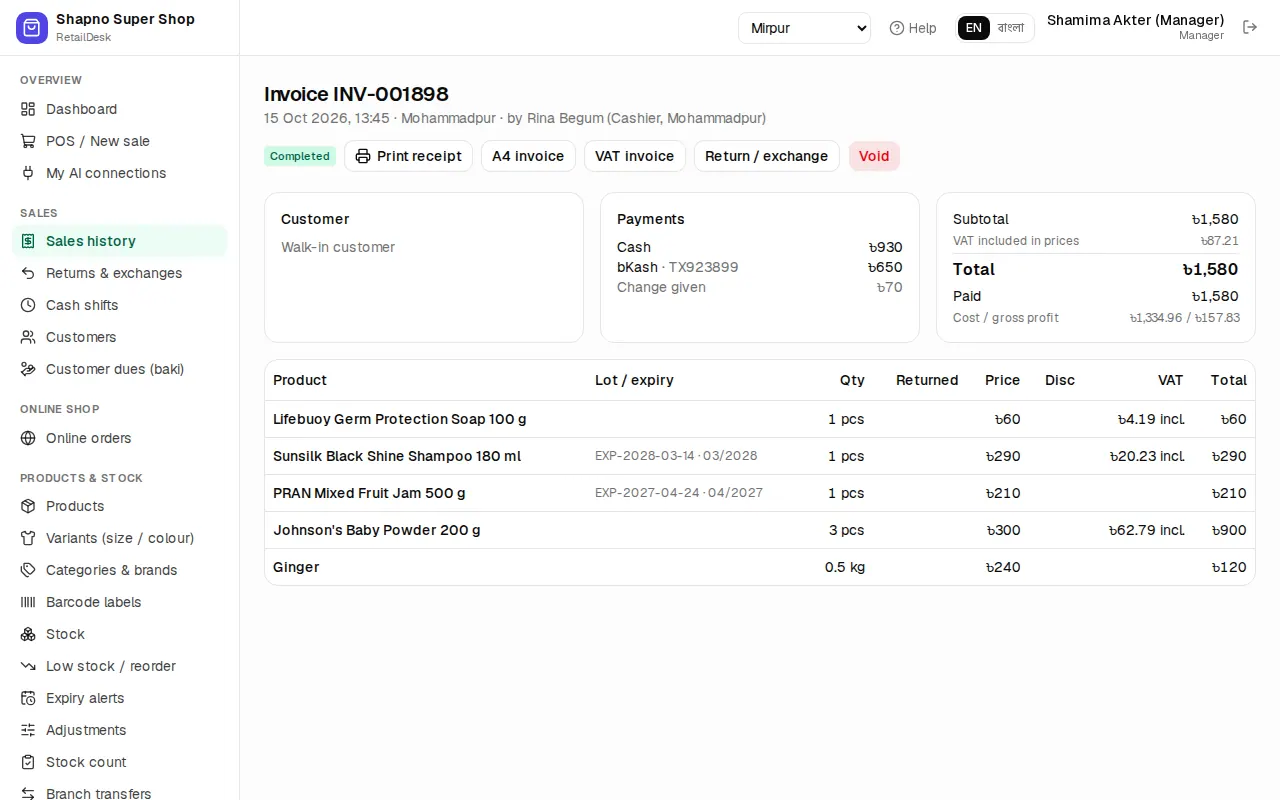
The invoice shows the items, discounts, VAT, payments and who sold it. The buttons at the top:
- Print receipt: reprints the 80 mm / 58 mm receipt. A reprint never opens the cash drawer.
- A4 invoice: a full-page invoice, for example for a company buyer.
- VAT invoice: a Mushak-6.3 style invoice, when VAT is on and the bill has VAT.
- Return / exchange: take items back (see below).
- Void: cancel the whole sale (manager only).
Managers and the owner also see the cost and gross profit of the invoice.
Take a return
- Open the invoice and click Return / exchange.
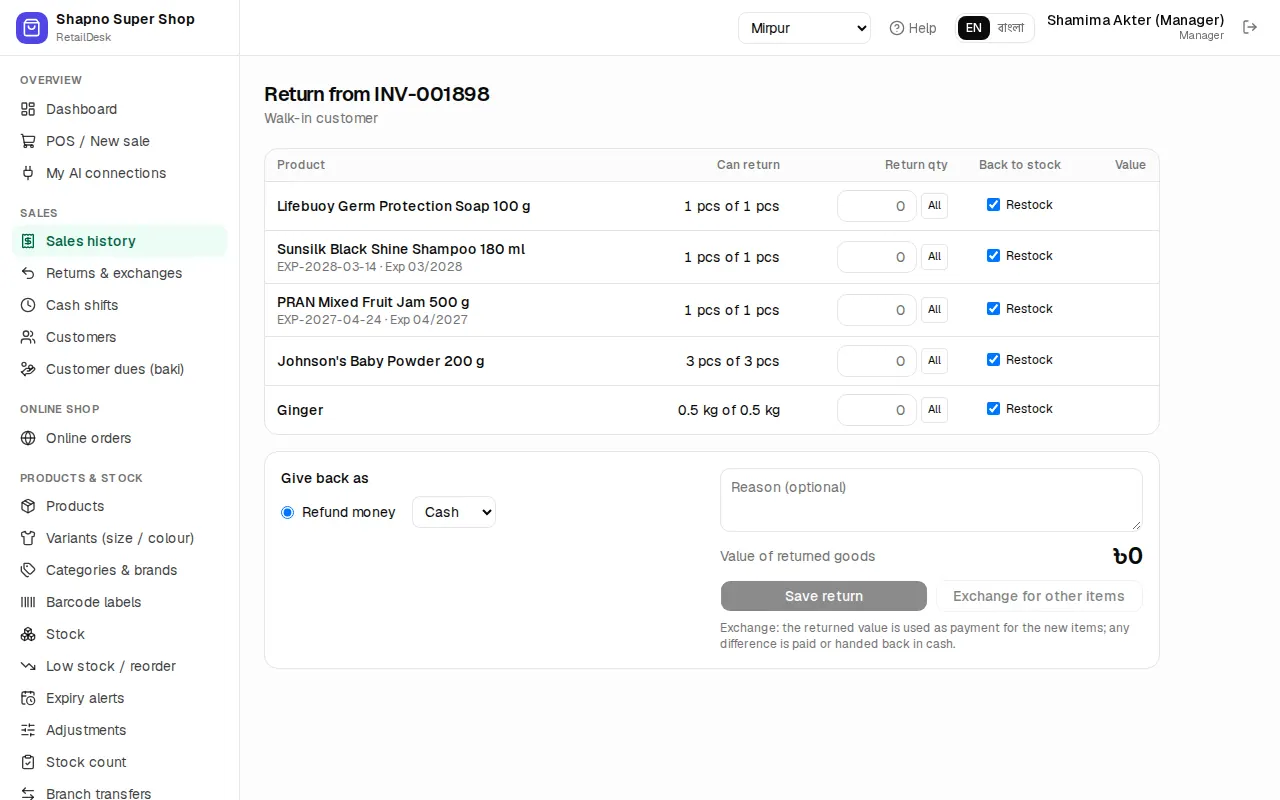
- In Return qty, type how many come back, or click All.
- Back to stock: leave Restock ticked if the item can be sold again. Untick it for damaged or expired goods; they are written off instead of going back on the shelf.
- Under Give back as, choose Refund money and the method (cash, bKash, …), or Reduce the customer's due if the sale has a customer.
- Add a reason if you like, check Value of returned goods and click Save return.
Rules:
- By default a cashier can take returns for 7 days after the sale. After that you see Only a manager can take this return. The owner sets the window in Settings.
- You can't refund more money than was paid. Credit the rest to the customer's due.
- A cash refund needs an open cash shift, and you must be in the branch where the sale was made.
- When everything is returned from an online order, Also give back the delivery charge appears.
Exchange for other items
A customer wants a different size or another product:
- On the return page, enter the items coming back and click Exchange for other items.
- The POS opens with a yellow banner Exchange for INV-… and the returned value as credit.
- Scan the new items and press Pay. If the new items cost more, the customer pays the difference. If they cost less, the total shows Hand back and you give the change.
Click Cancel exchange on the banner to stop.
Returns list
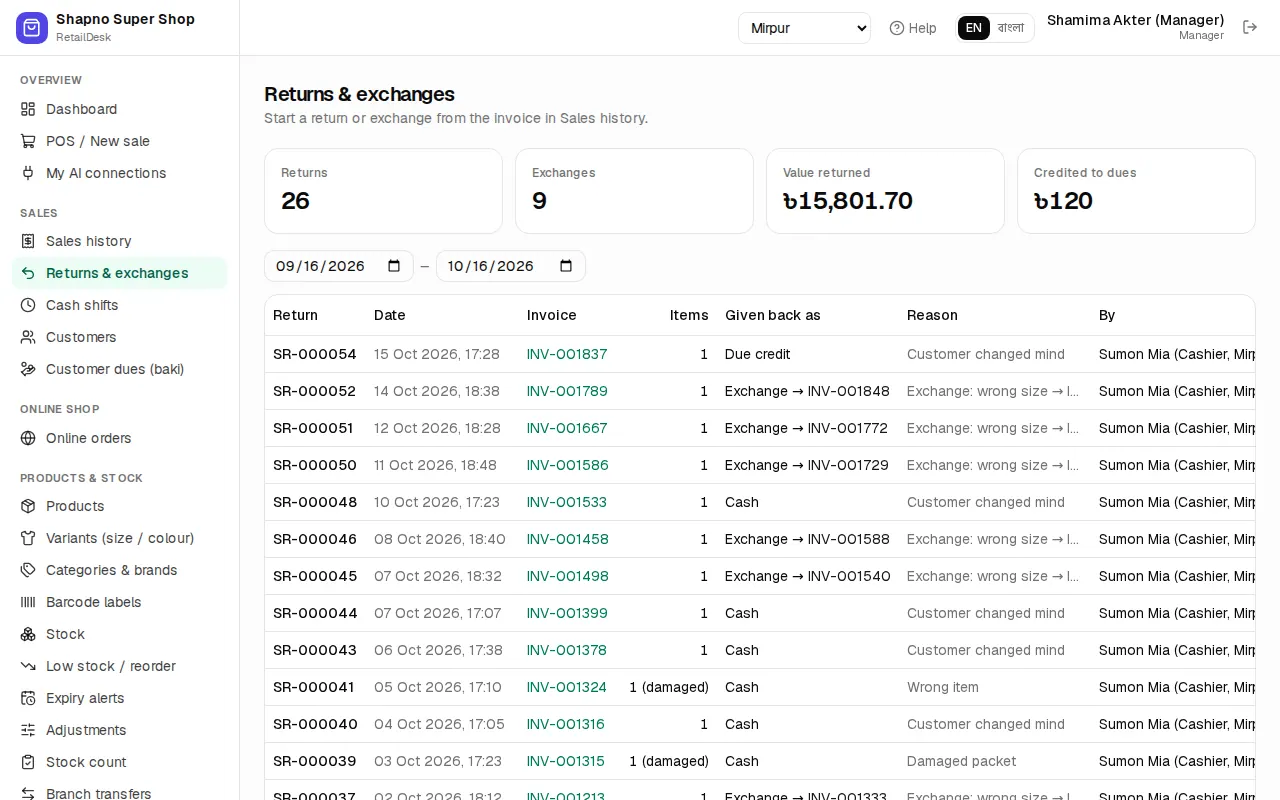
Sales › Returns & exchanges lists every return of the last 30 days with its value and how it was paid back. Returns are always started from the invoice.
Void a sale
Use void only for a sale that should never have happened, for example rung up twice by mistake.
- Open the invoice and click Void.
- Type the Reason (required) and click Void sale.
Stock goes back to the shelf, payments are reversed and the invoice is marked Void. This can't be undone.
- Only a manager or the owner can void, and only in the branch of the sale.
- A sale that already has a return, or a due payment collected after the sale, can't be voided. Take a return instead.