Products & stock
Products, categories and brands
Add products with barcodes, prices, wholesale price, VAT and reorder levels; set up loose items sold by weight; keep categories and brands tidy.
Who it is for:Stock keeperManagerOwner
On this page
Everything you sell is a product: a soap, a kilo of rice, a pair of shoes in one size. This chapter covers single products. Clothing and shoes in many sizes and colours are easier with Variants.
Product list
Go to Products & stock › Products.
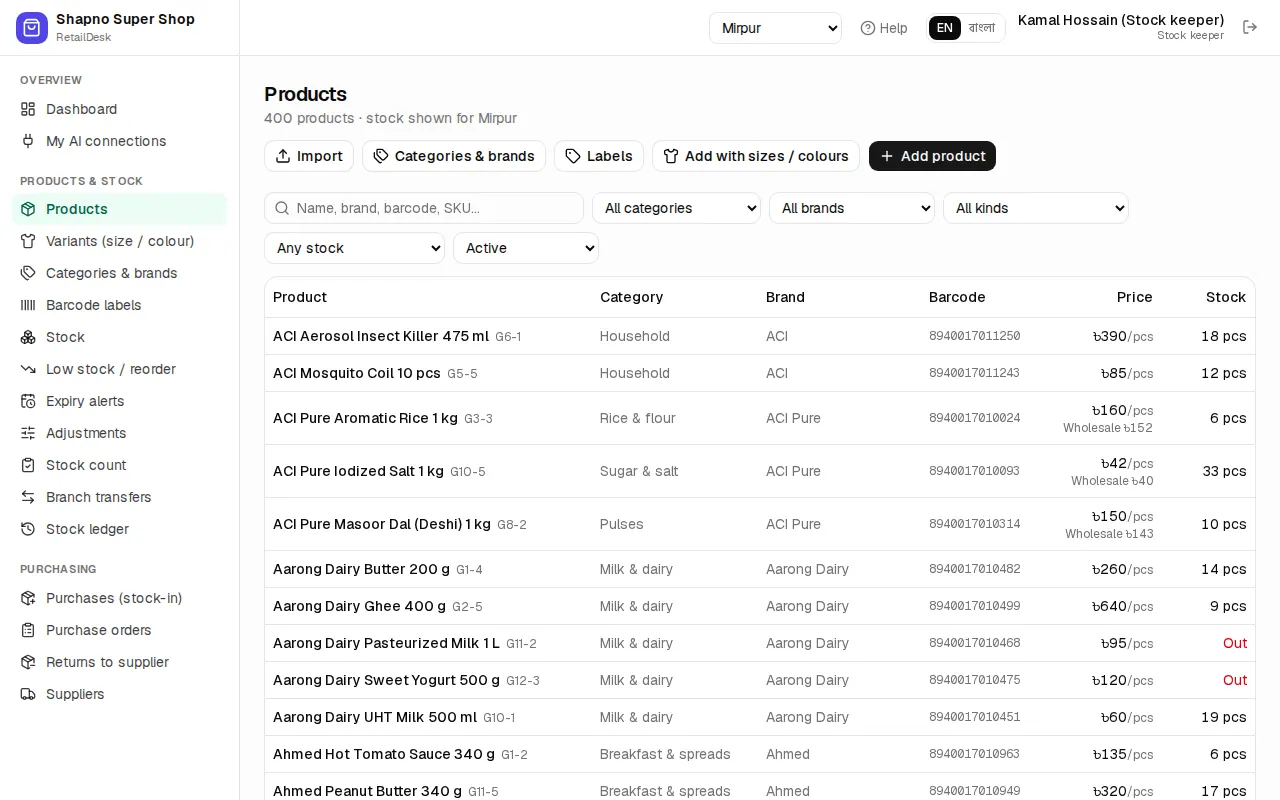
Search by name, brand, barcode or SKU. Filter by category, brand, kind (Loose / weighed, Variant, Tracks expiry, No barcode) and stock (In stock, Out of stock, At/below reorder level). The list shows the retail price (with the wholesale price under it) and the stock in your branch.
Add a product
Click Add product.
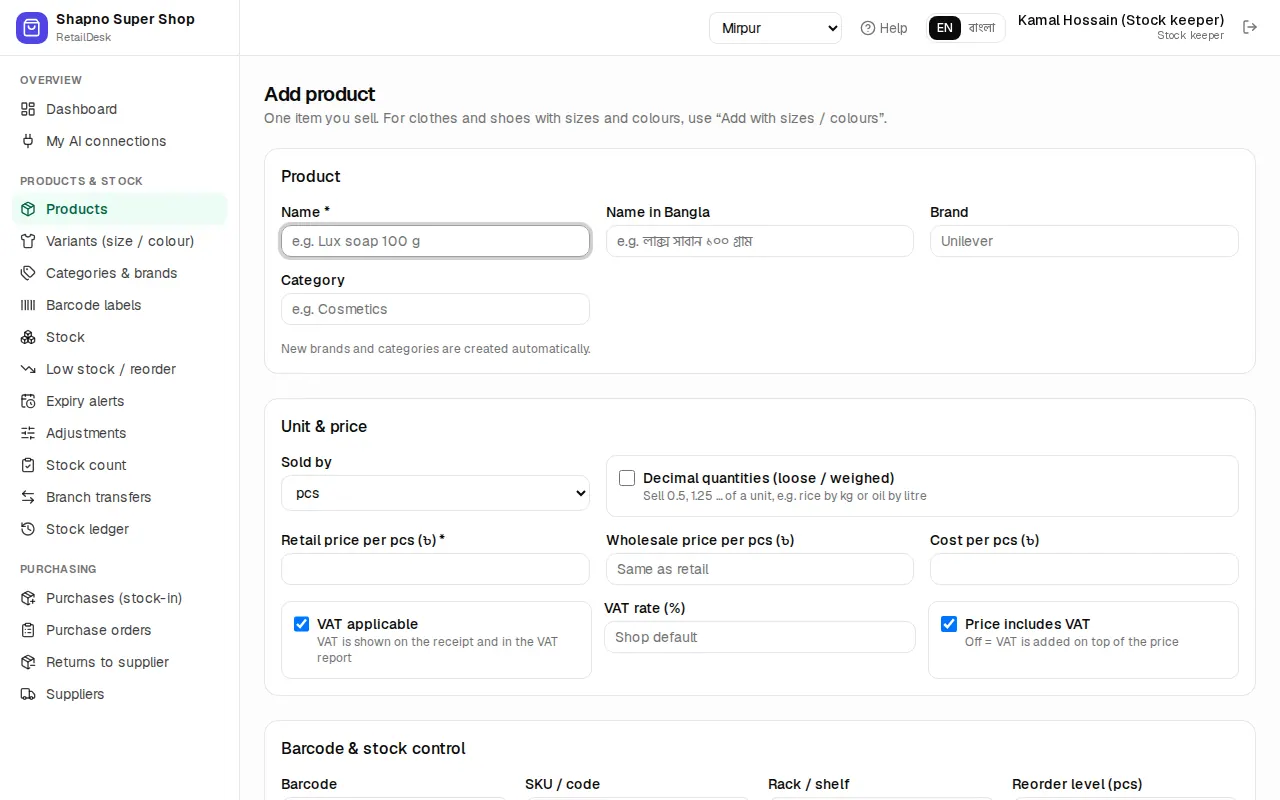
Product
- Name in English, for example Lux soap 100 g*, and Name in Bangla (shown in Bangla mode and on Bangla receipts).
- Brand and Category: type a new name and it is created for you.
Unit & price
- Sold by: pcs, kg, g, litre, ml, metre, dozen, pack, box or pair.
- Retail price per … (৳) *: the counter price.
- Wholesale price per … (৳): for wholesale customers. Leave it empty for Same as retail.
- Cost per … (৳): what you pay. RetailDesk shows the margin. After the first purchase the cost is kept up to date for you (moving average cost).
- VAT applicable, VAT rate (%) (empty = Shop default) and Price includes VAT. Off = VAT is added on top of the price.
Barcode & stock control
- Barcode: scan the product's printed barcode into the box.
- SKU / code and Rack / shelf help staff find it.
- Reorder level and Reorder qty: when stock in a branch falls to the reorder level, the product shows in Low stock / reorder.
- Track expiry dates: purchases then ask for an expiry date, and the oldest expiry sells first.
Click Add product.
Barcodes for items without one
Loose items, local products and your own packs often have no barcode. Tick Generate a barcode (it is ticked on a new product when the barcode box is empty): RetailDesk gives the item an in-store EAN-13 barcode starting with 20. Print it on labels with Barcode labels.
On an existing product without a barcode, click Generate barcode on its page. Each barcode can belong to only one product; if you scan one that is taken, you see which product already uses it.
Loose and weighed items
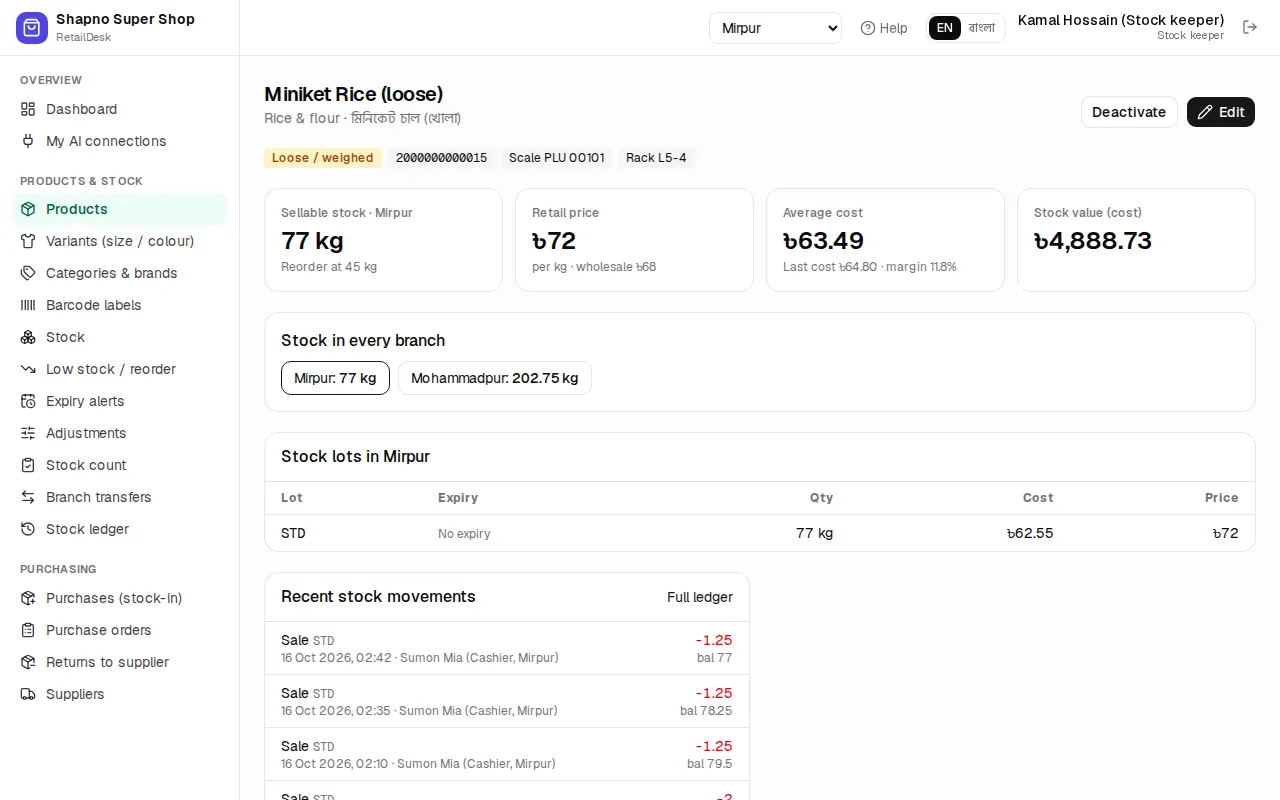
For rice, sugar, oil, cloth and so on, choose Sold by kg, g, litre, ml or metre. Decimal quantities (loose / weighed) is ticked for you, so you can sell 0.5 or 1.25 of a unit. The price is per kg, per litre or per metre.
If your weighing scale prints barcode stickers, type the item's code on the scale in Scale PLU code. See POS.
Product page
Click a product to see Sellable stock, Retail price, Average cost and Stock value (cost), the Stock in every branch, the stock lots in your branch (with expiry dates) and the Recent stock movements. Full ledger opens the stock ledger for it.
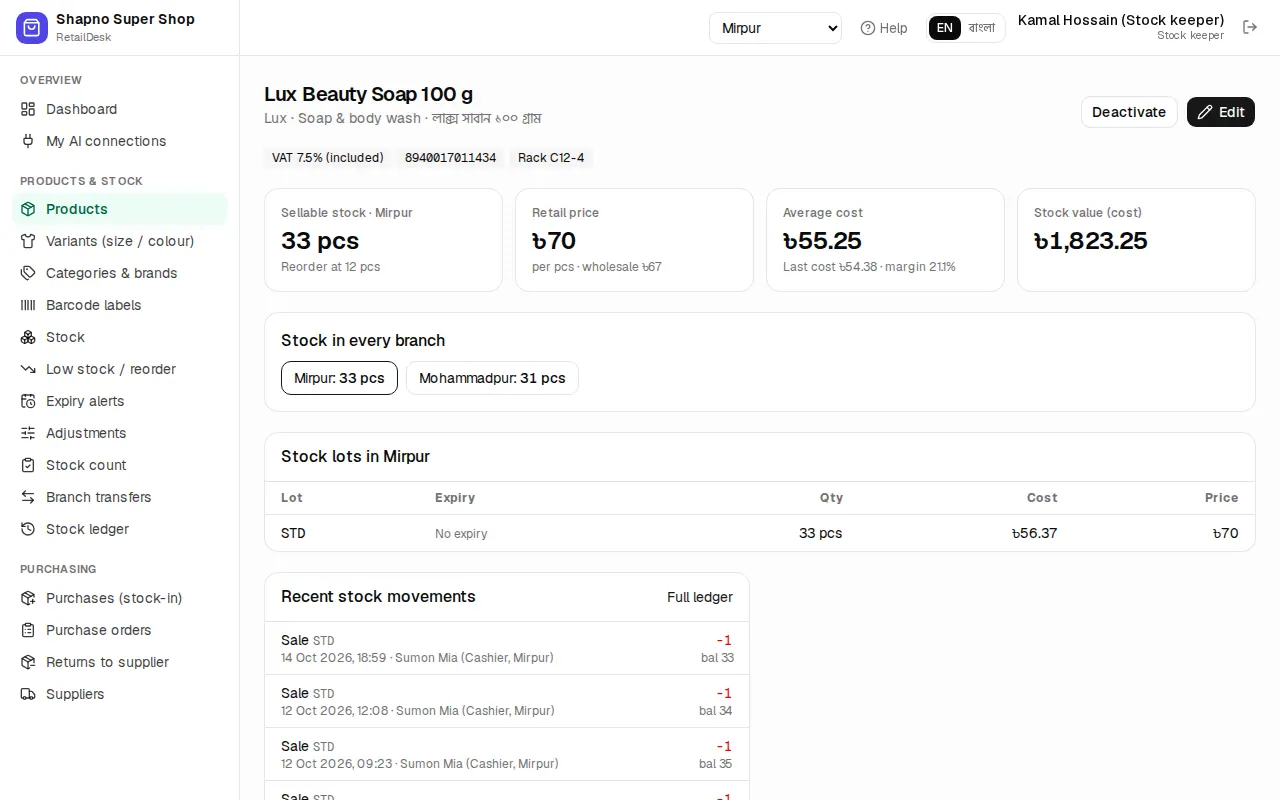
Edit changes the details. Deactivate hides a product you no longer sell, without losing its history.
Online shop
When the online shop is on, the product form has an Online shop section: Show in the online shop, a Photo link (optional) and a Description for customers (optional).
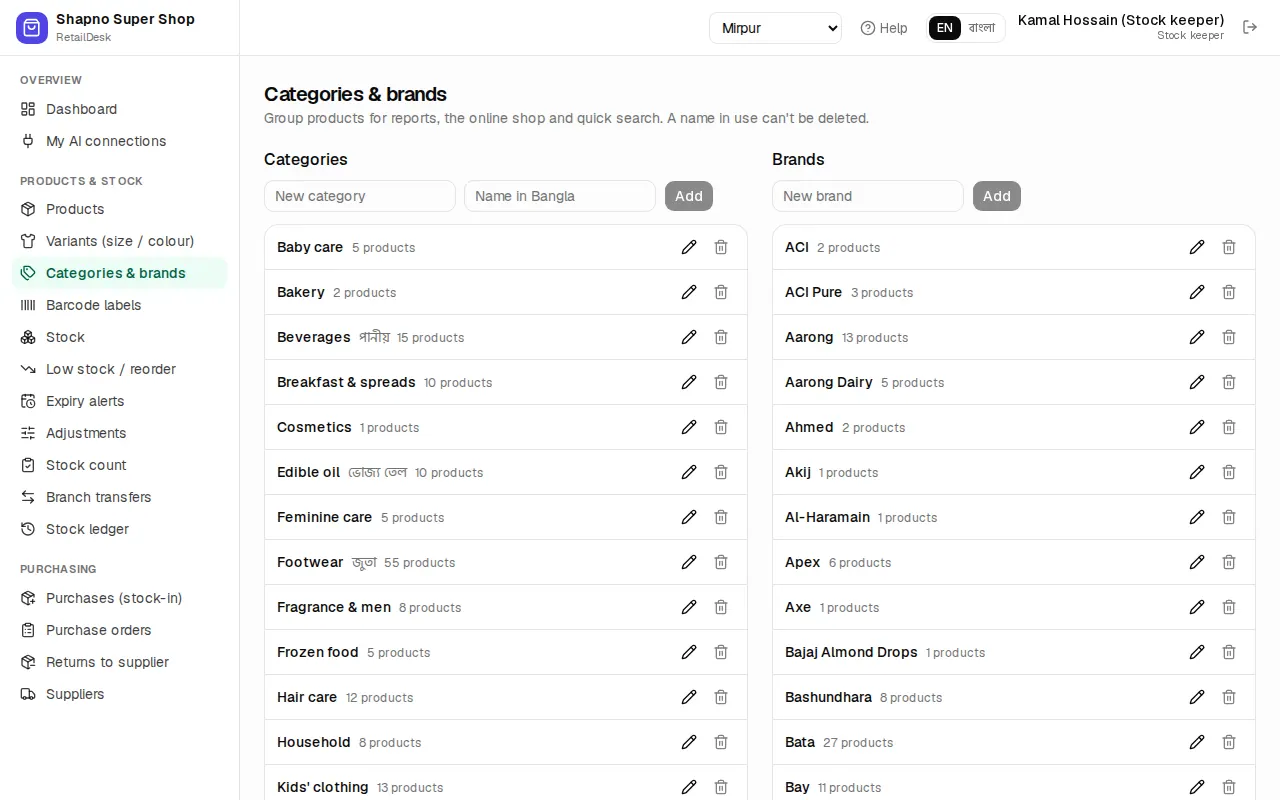
Categories and brands
Products & stock › Categories & brands keeps two lists. Type a name (categories can also have a Bangla name) and click Add. The pencil renames. A category or brand that products still use can't be deleted.
Many products at once
To bring in a whole price list, use Import on the product list or Admin › Import data. See Owner setup.