Products & stock
Barcode labels
Print price and barcode labels on A4 sticker sheets or a label printer, for new stock, a purchase or a whole style.
Who it is for:Stock keeperManagerOwner
Labels carry the barcode, the name and the price, so the counter can scan every item. Print them for products without a barcode, for clothing tags, and for loose items you pack yourself.
Print labels step by step
- Go to Products & stock › Barcode labels.
- In Add product…, search and add the items.
- Set Copies for each item, or use Copies for all: 1 each, 1 per item in stock, or 1 per item received (when you came from a purchase).
- Choose the Label size: a roll (38×25, 50×25, 40×30 or 30×20 mm) or an A4 sheet with 65, 40, 24 or 21 labels.
- Tick what to print: Name, Price, Lot & expiry, Shop name.
- Click Print N labels.
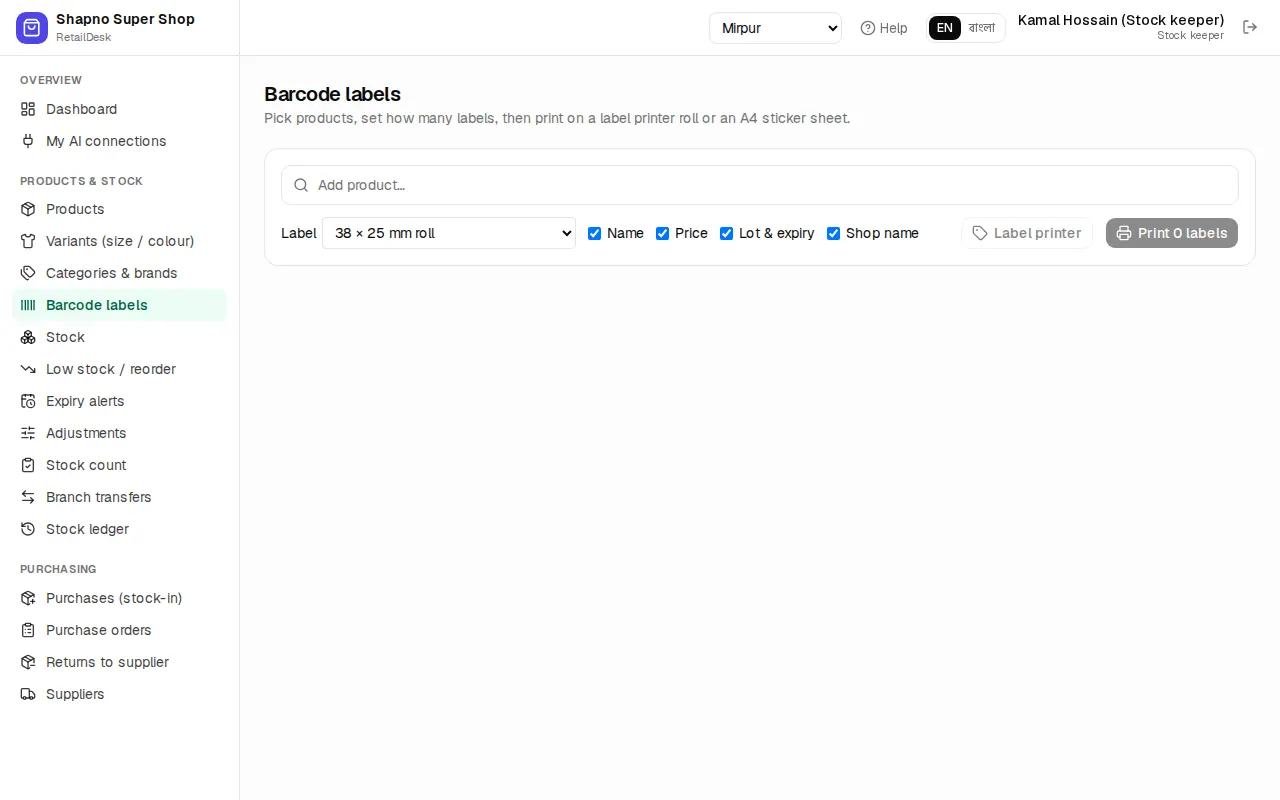
If some items have no barcode yet, click Create barcodes for N first.
A4 sticker sheets
Print A4 sheets on any office printer. If part of a sheet is already used, set Skip used labels to the number of stickers already peeled off, so printing starts on the first free one. In the browser's print window choose Actual size (100%) so the labels line up.
Label printer
With a thermal label printer connected in Printers, labels & scale, choose a roll size and click Label printer to print without the browser's print window.
Shortcuts from other pages
- From a purchase: Print labels prints one label per item received.
- From a style: Print labels fills in every size and colour.